Officiti: redefining flexible workspaces.
A B2B platform that lets companies rent out unused desks, workstations and units to freelancers and small teams. This case study covers the research, the product decisions, the wireframes and UI, and the design system behind it. It also includes an honest audit of what I would improve next.
Empty desks on one side, nowhere to work on the other.
Commercial rents in cities keep rising, and the gig and freelancer economy keeps growing. Many individuals and startups cannot find an affordable, accessible and quiet place to work. Meanwhile, larger companies sit on unused desks and zones after the shift to hybrid work.
Officiti bridges that gap. It lets companies that own or manage an office share or rent redundant workstations and self-contained units to smaller companies looking for flexible workspace, and it gives those tenants one place to book, connect and get help.
Six pain points, grouped into four themes
Visibility
Hard to control and track workspace availability, and no real-time view of what is free.
Design response. A dashboard with today's meetings, a calendar, and clear booking status.Booking friction
No centralized system for shared office bookings. Most co-working spaces have no website or other online way to reserve a space.
Design response. In-app booking for rooms and desks with date, time and attendees in one flow.Communication
Poor communication between tenants, teammates and space providers when something needs fixing or approving.
Design response. Support tickets, notifications and a visitor approval flow.Cost and choice
High cost and low availability of quality spaces in prime locations, and no way to compare spaces side by side.
Design response. Flexible booking so people pay for the time they need, and a package view showing what they have left.What I asked, and what it meant.
Method
Client interviews, user research and a competitor review, covering freelancers, startups and office managers. The findings are qualitative and directional. They shaped decisions rather than proving statistics.
Interview questions
- 1
Where do you find professionals or freelancers?
- 2
Do users use this platform to access their workspace?
- 3
Will people have access to the same place for the time they will be present?
- 4
Will it be overcrowded or noisy?
- 5
Did working together create networking opportunities?
Findings turned into design implications
| What I found | What it means for the product |
|---|---|
| Finding a co-working space is hard. Most have no website or online booking. | Booking must happen in the app, with availability visible up front. |
| Renting in prime locations is expensive, so small teams and individuals want accessible space. | Flexible, short bookings and a clear view of remaining package days. |
| People worry about crowding and noise. | Offer meeting rooms for small and large groups, and show who is attending. |
| People need to know the same place is theirs for the time booked. | Clear booking confirmations, a calendar and reminders. |
| Networking is a real benefit of shared space. | Connect with teammates and other professionals in the same workplace. |
| Shared offices need secure, tracked access. | Visitor invitations and QR-based entry with a record. |
One person to design for, four questions to answer.
Mayank Mishra
A freelancer who works remotely and needs a place to work peacefully. Working from home is tough because he lives with his family and the space is noisy. He has to attend client calls, so he needs a place without disturbances.
Goals
- Find a peaceful place to sit, work and attend client calls without disturbance.
- An affordable place that matches his budget.
Frustrations
- Not finding a good working space in prime locations.
- Expensive rent.
Who the product is for
User
Working professionals who cannot afford a dedicated space, and freelancers.
Platform
Android, iOS and web, sharing one design system.
Task
Connect with teammates in one's office and with other professionals in the same workplace.
Business roles
Space owners with extra capacity, renters such as remote professionals and small teams, and managers such as HR and office managers.
How might we…
show availability clearly so nobody travels to a space that is full?
make booking a room a matter of seconds instead of phone calls and paperwork?
let hosts control access and track visitors without manual effort?
give members a fast way to get help when something in the space breaks?
From ideas to a focused first release.
Solutions that came out of the interviews
An app that provides the required information and easy ways to book the space.
Availability of meeting rooms for small as well as large numbers of people.
An app that keeps track of data and has secure access to personal space.
Prioritizing what to build first
Must have
- Onboarding, sign-up, sign-in
- Dashboard with today's meetings
- Book a meeting room
- Support tickets
- QR access and visitors
Should have
- Notifications
- Past meetings
- Wi-Fi access details
- Search and add attendees
Could have
- Recurring bookings
- In-app chat
- Workspace filters
Later
- Payment gateway
- Smart matching
- Ratings
- Owner admin dashboard
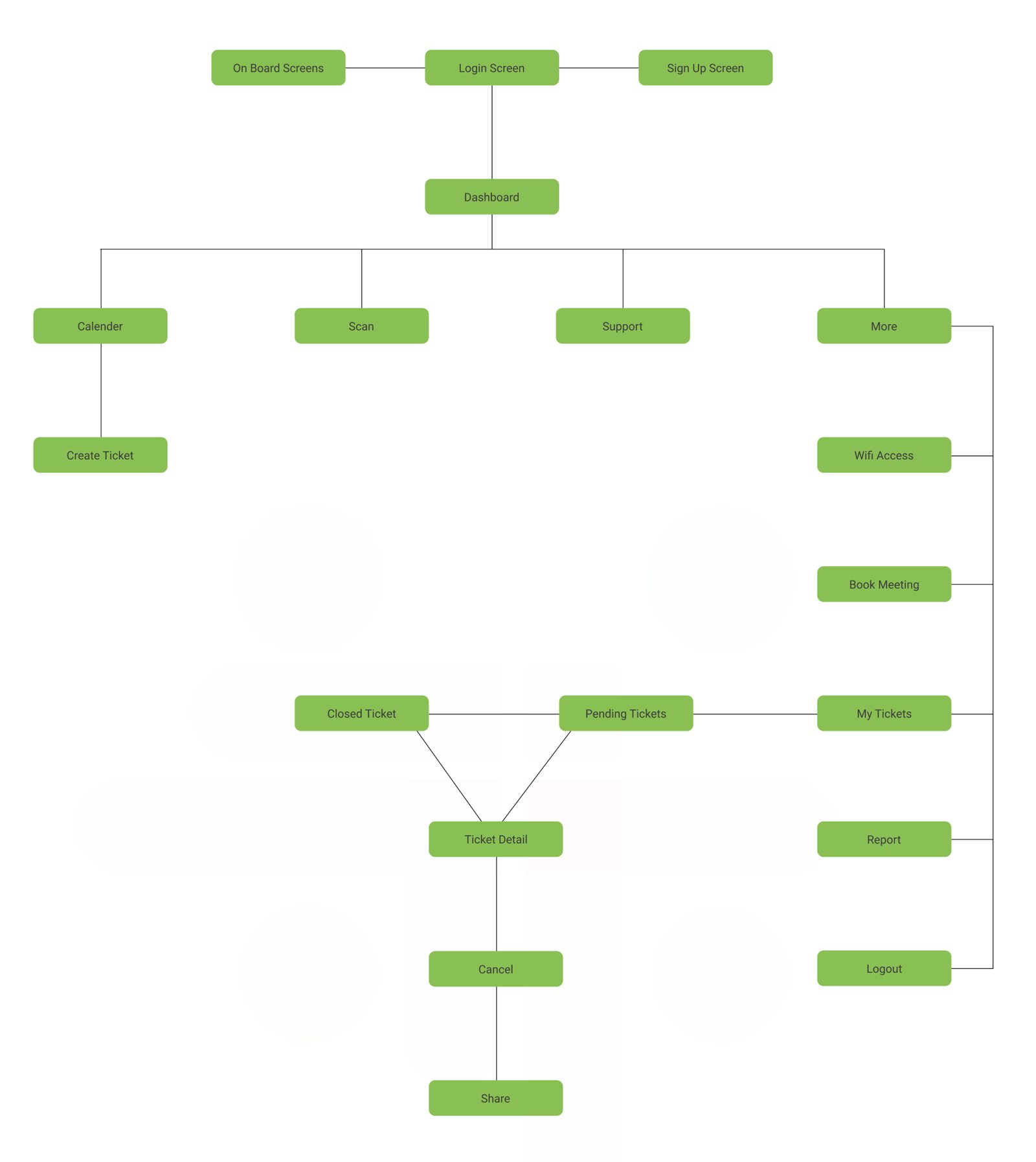
Structure first, in grayscale.
Low-fidelity wireframes settled hierarchy, navigation and content before any color or style. Working in grayscale forced every screen to communicate through layout and text alone.
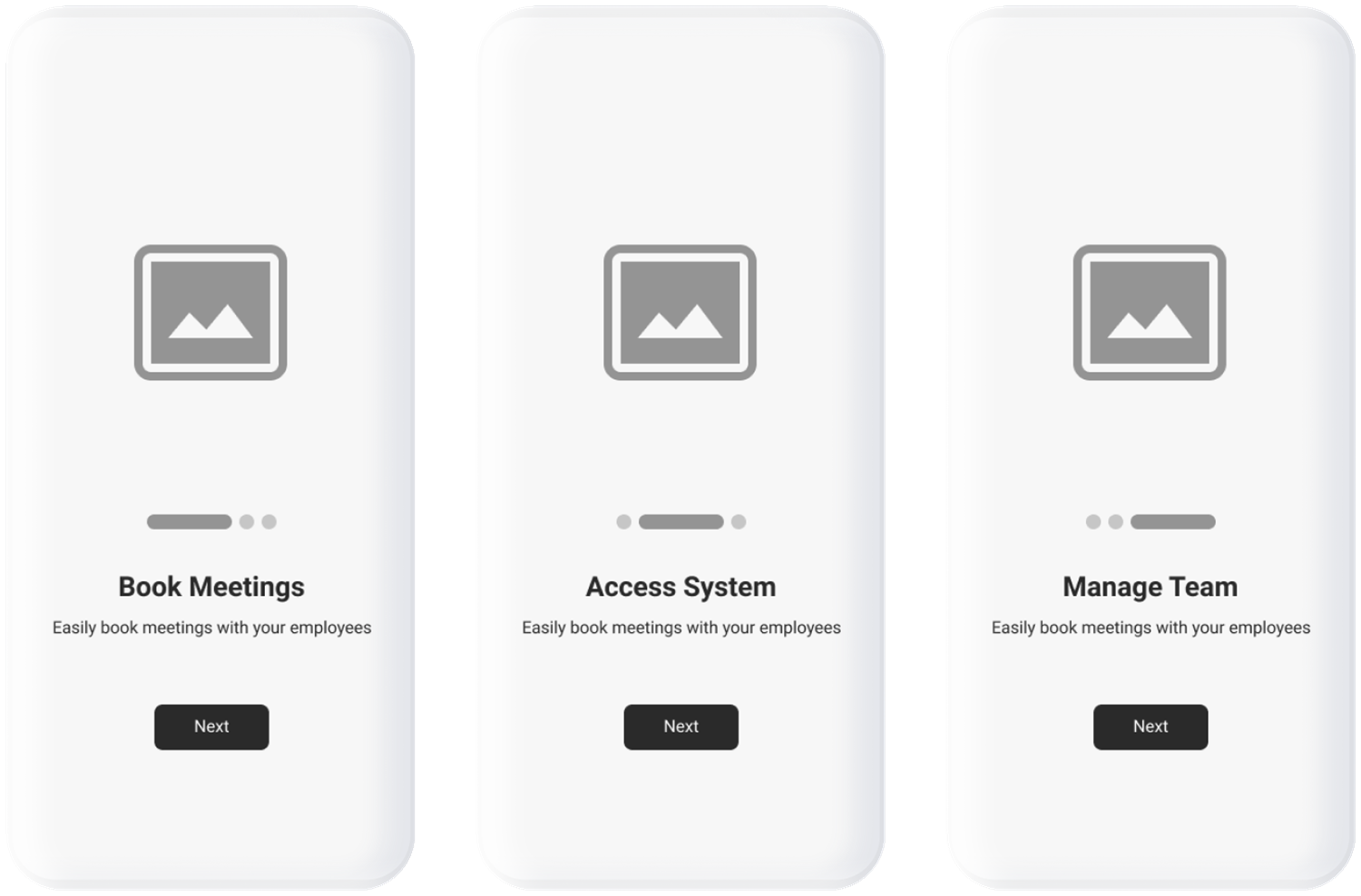
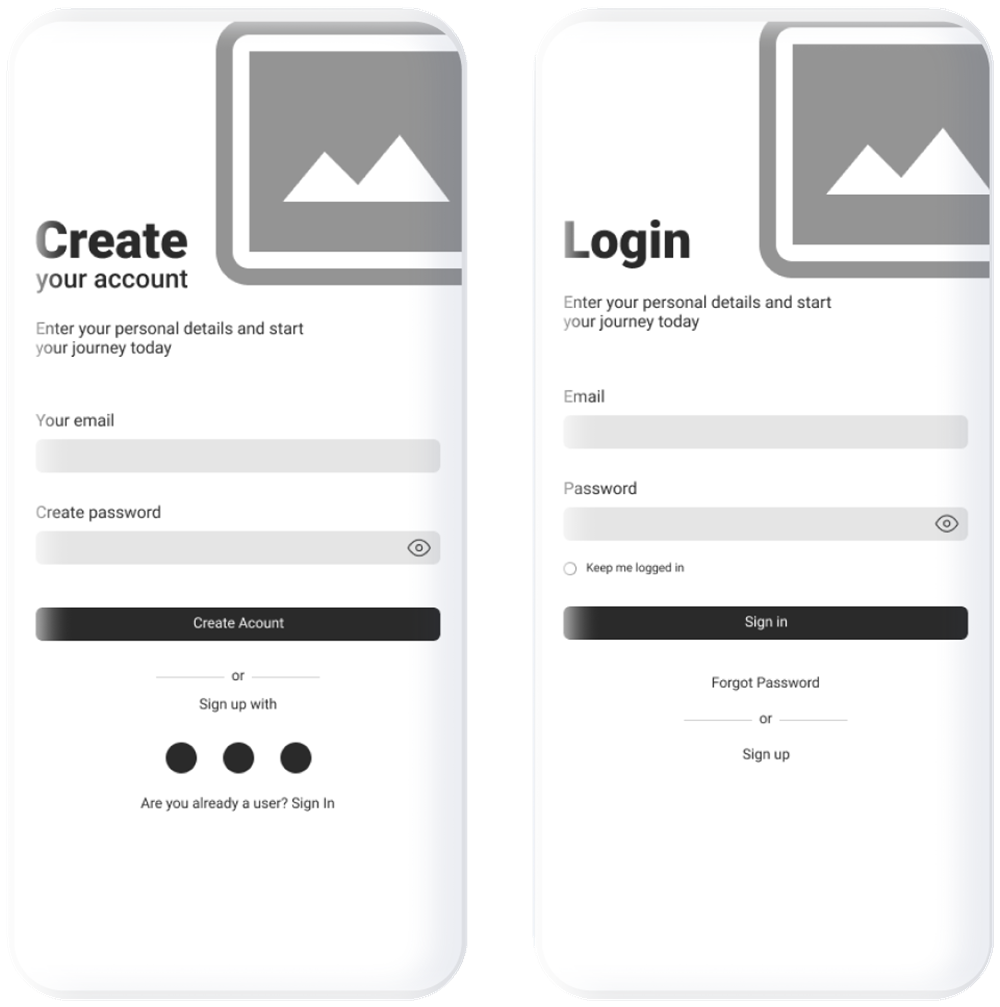
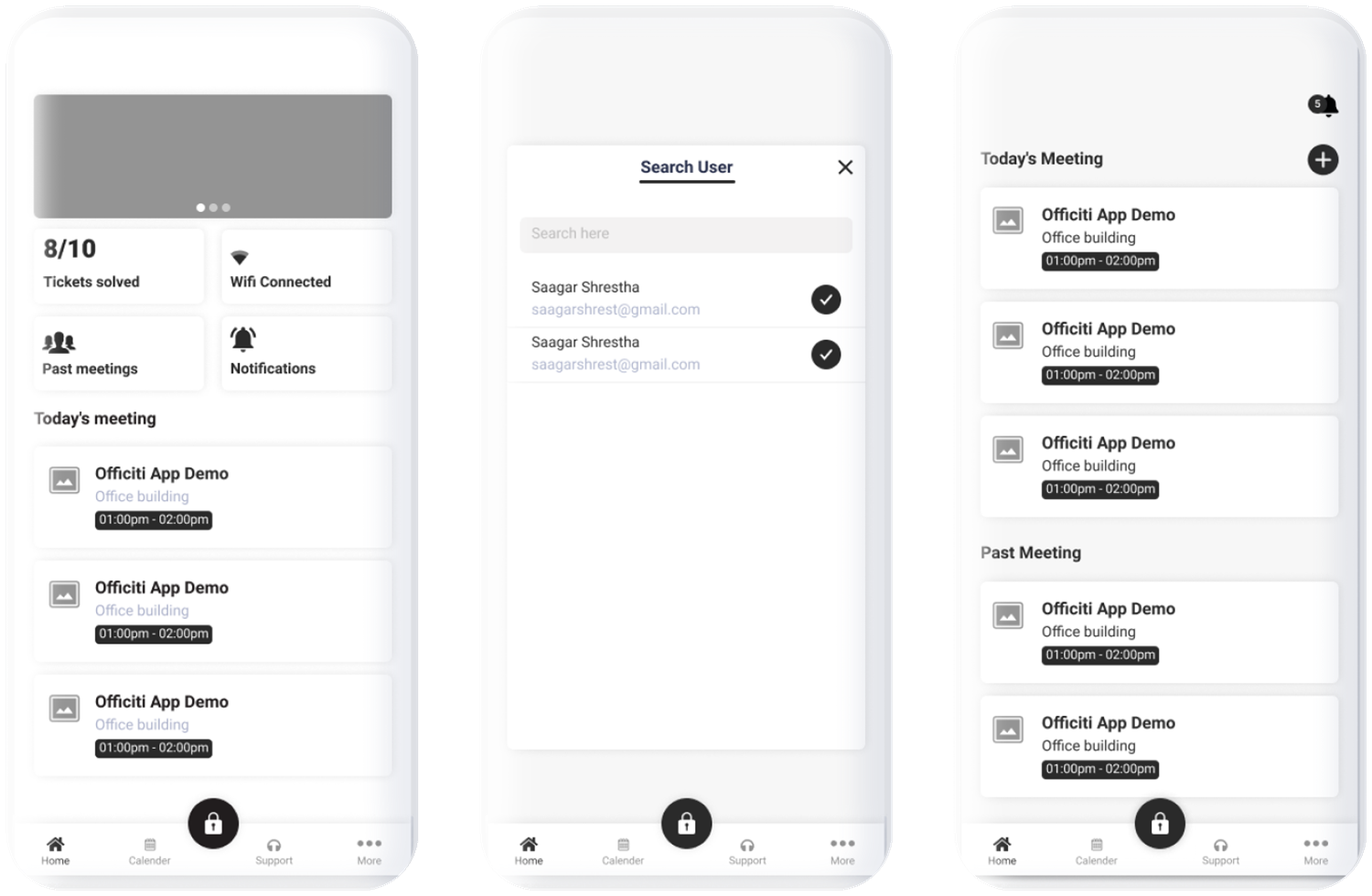
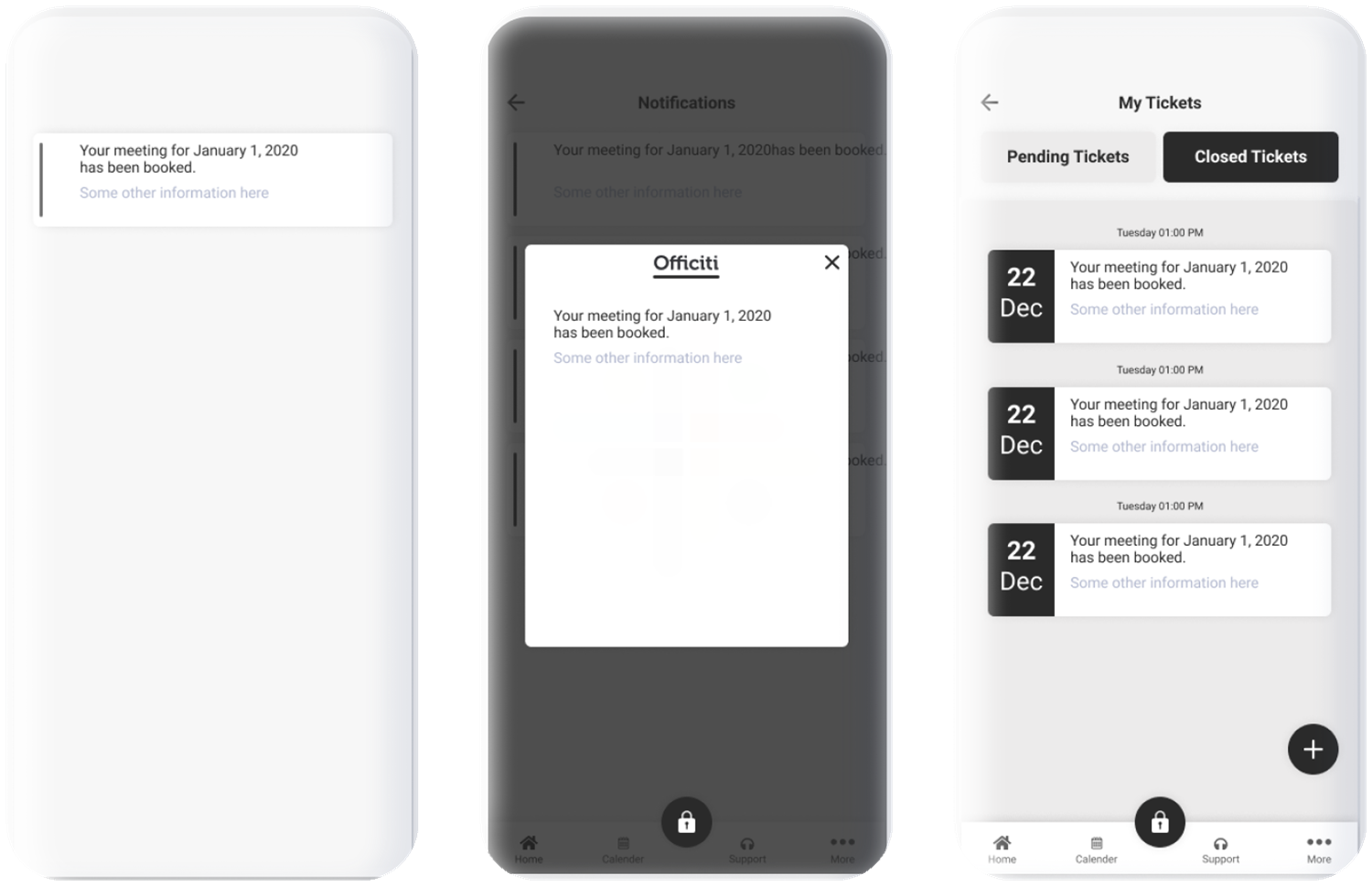
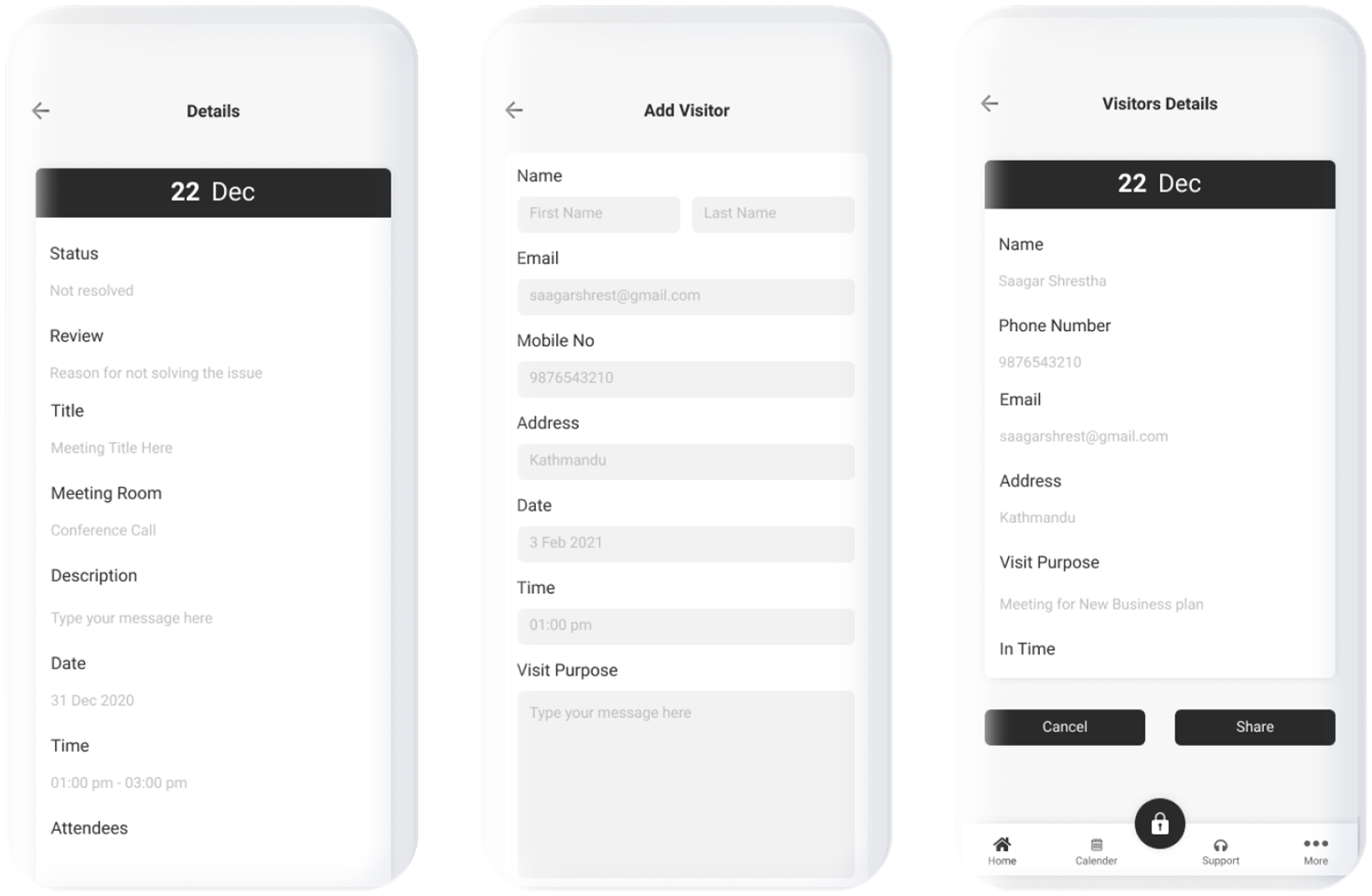
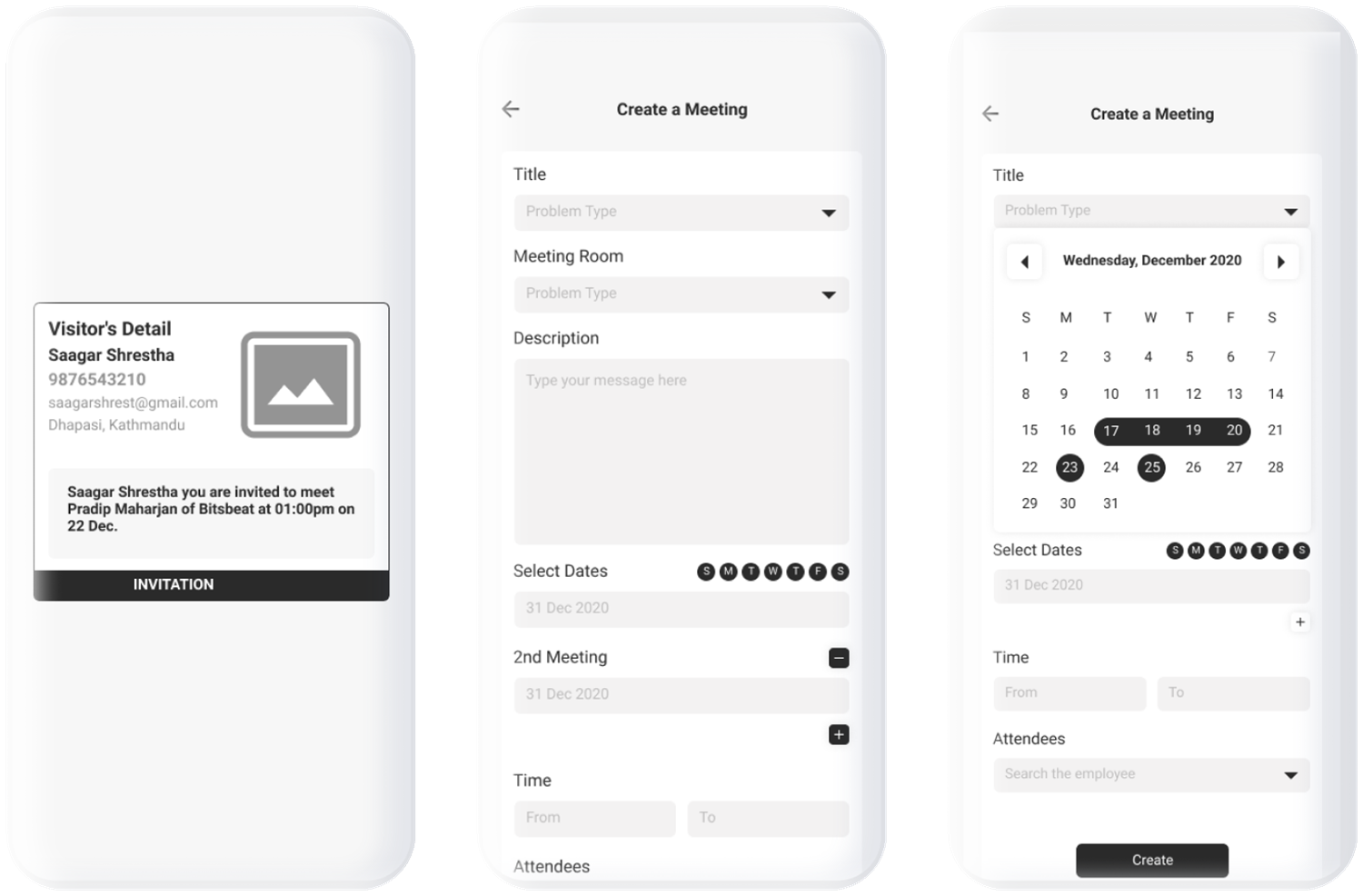
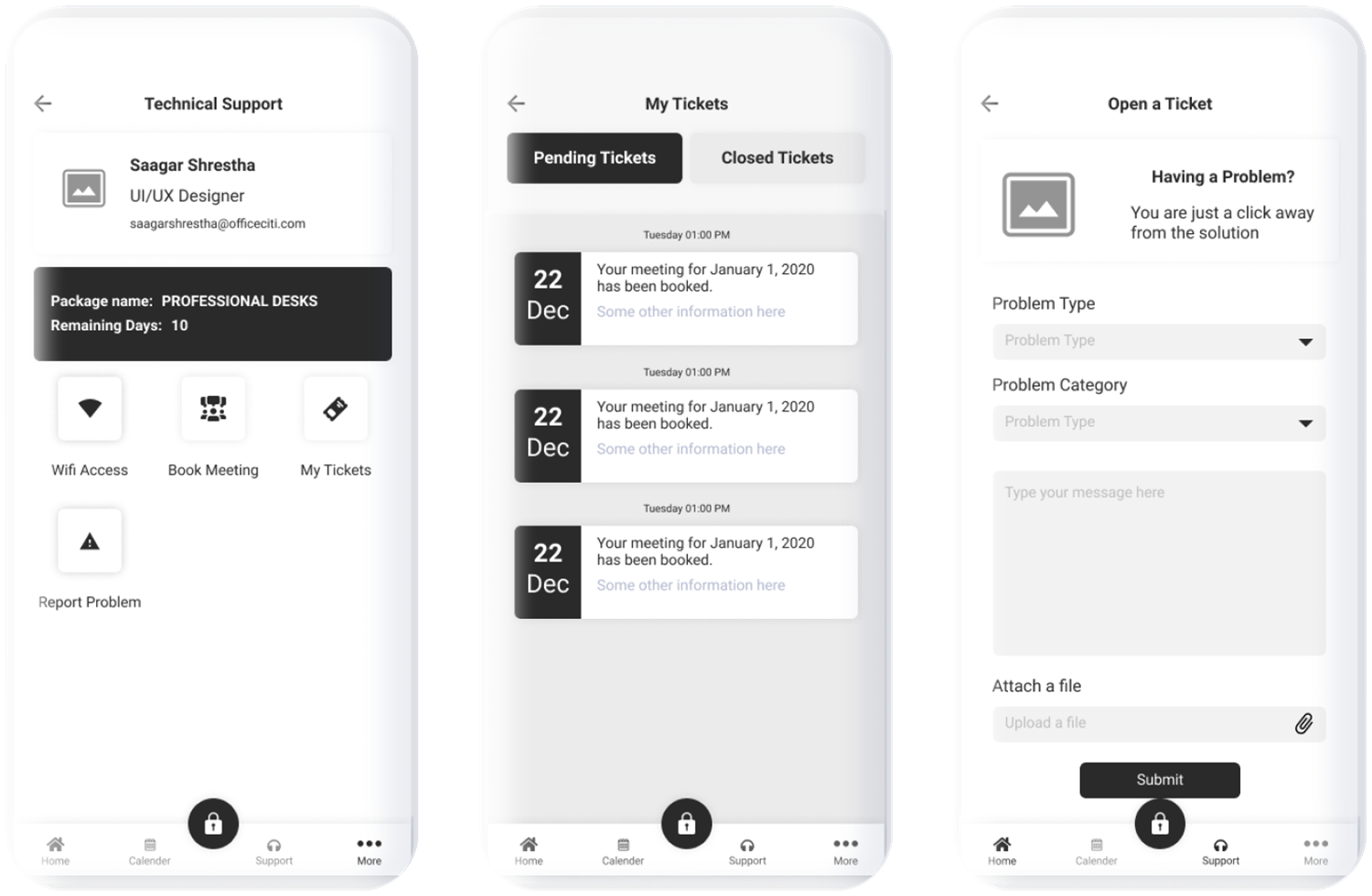
Adding color, carefully.
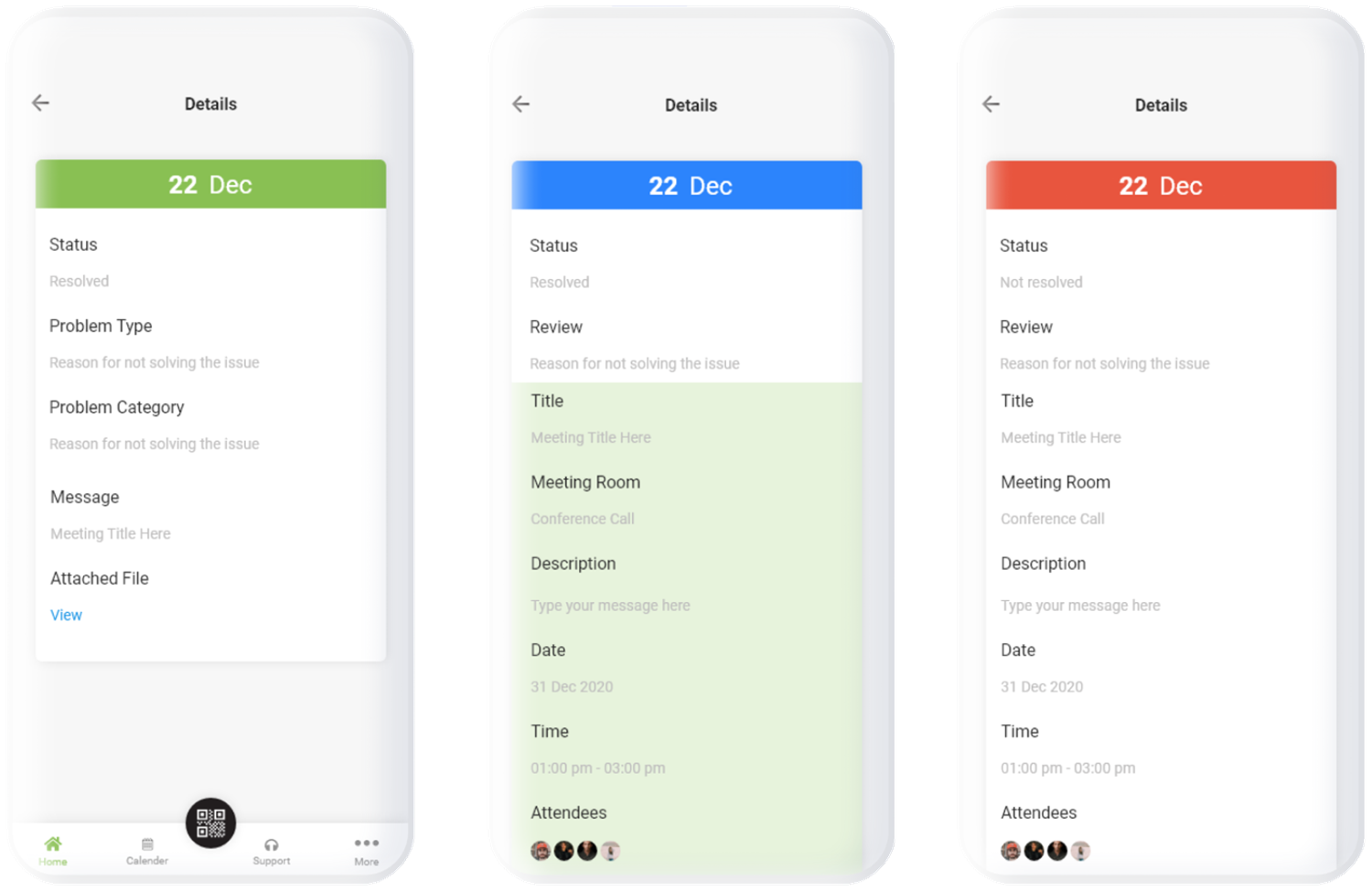
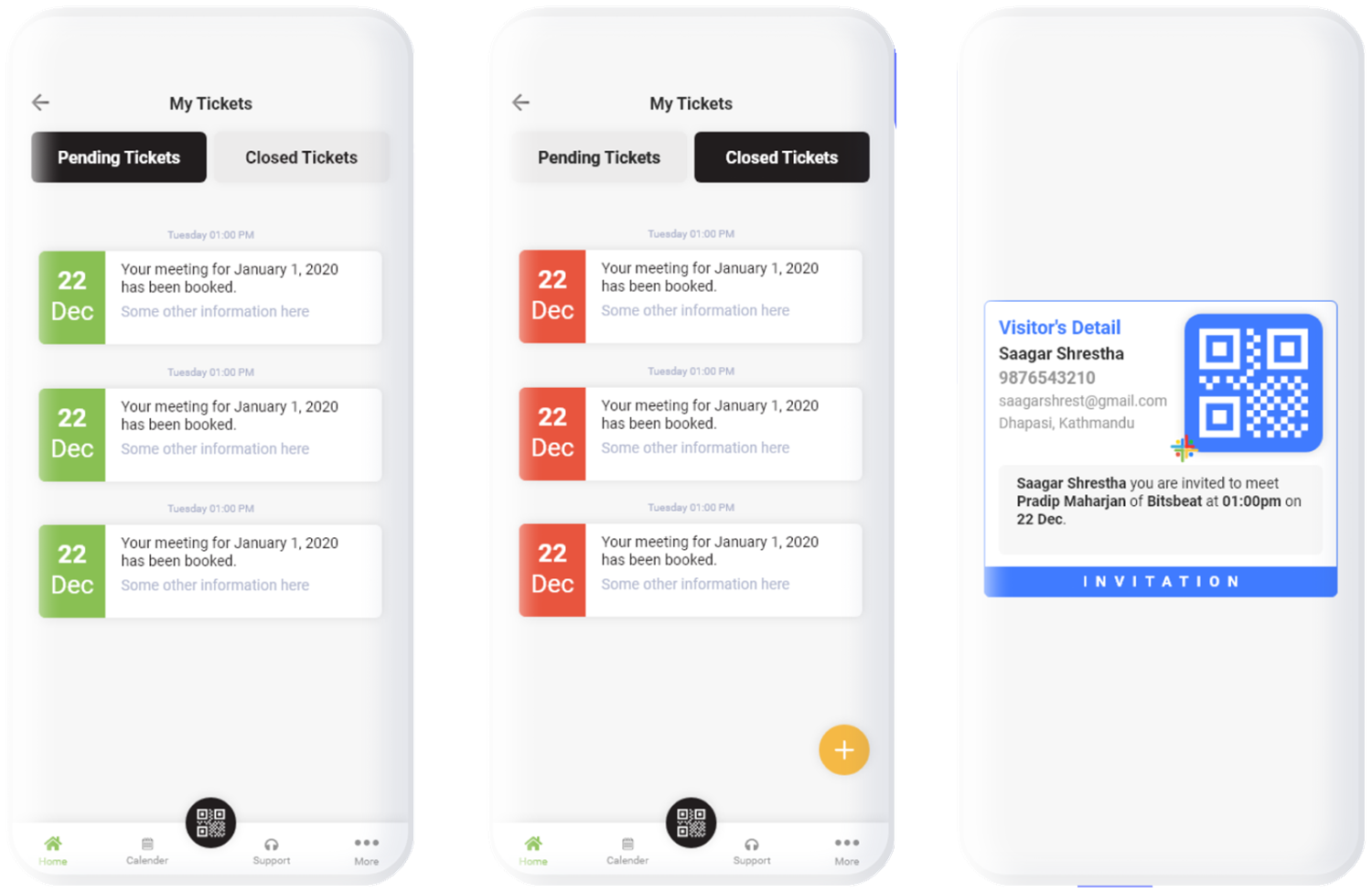
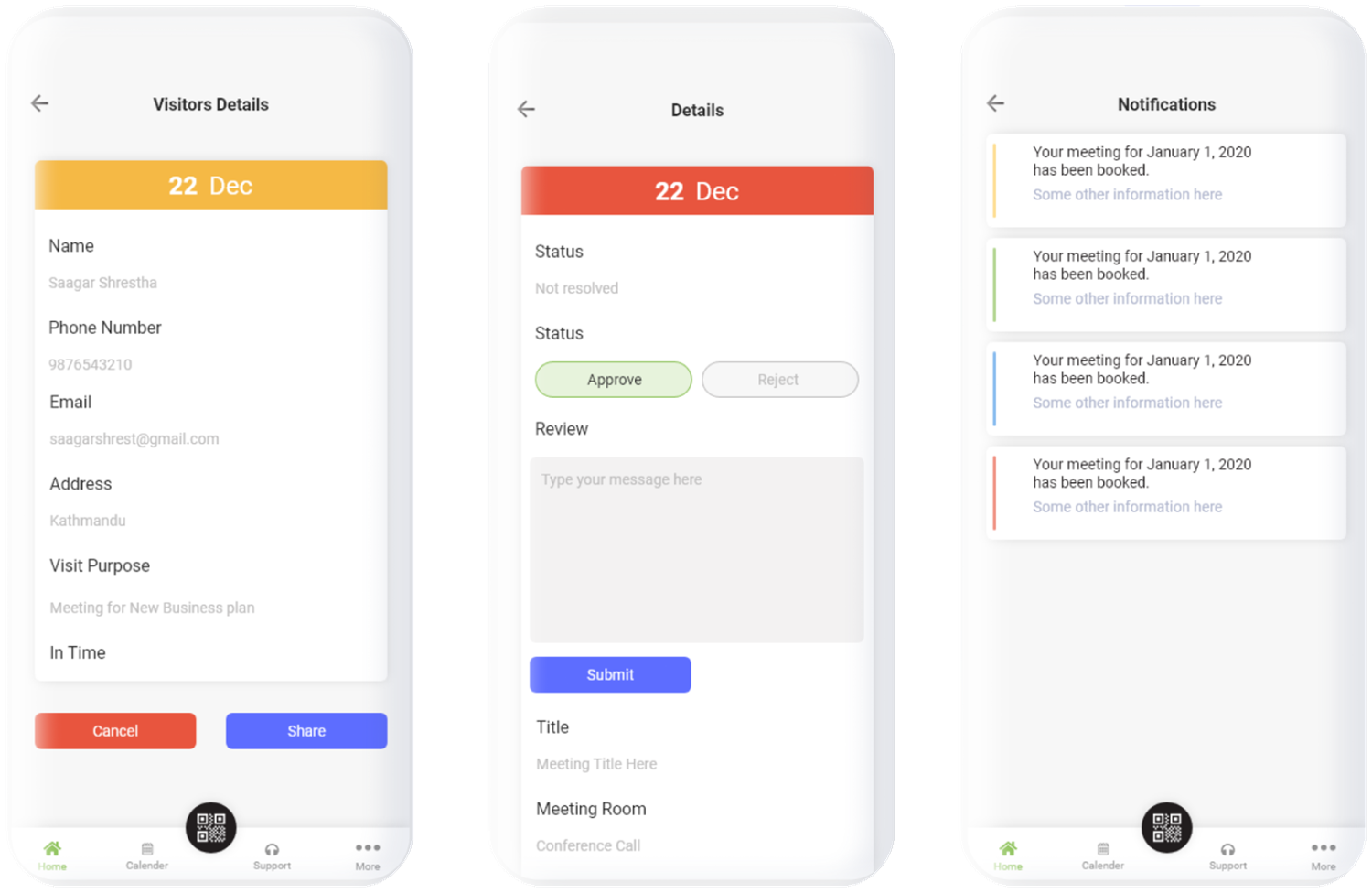
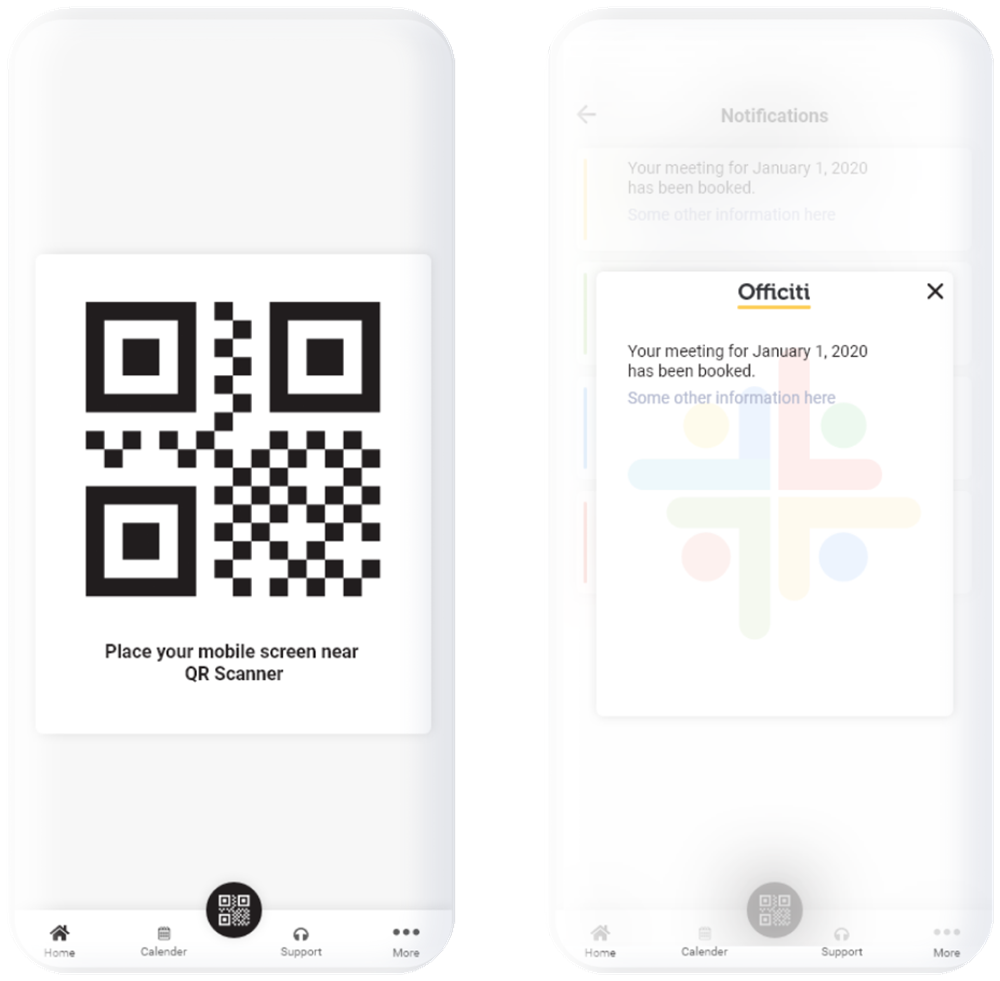
The high-fidelity design applies the brand palette and Roboto to the approved wireframes. Illustration makes onboarding friendly, while color is used with meaning: green for resolved, red for problems, blue for actions and amber for pending.
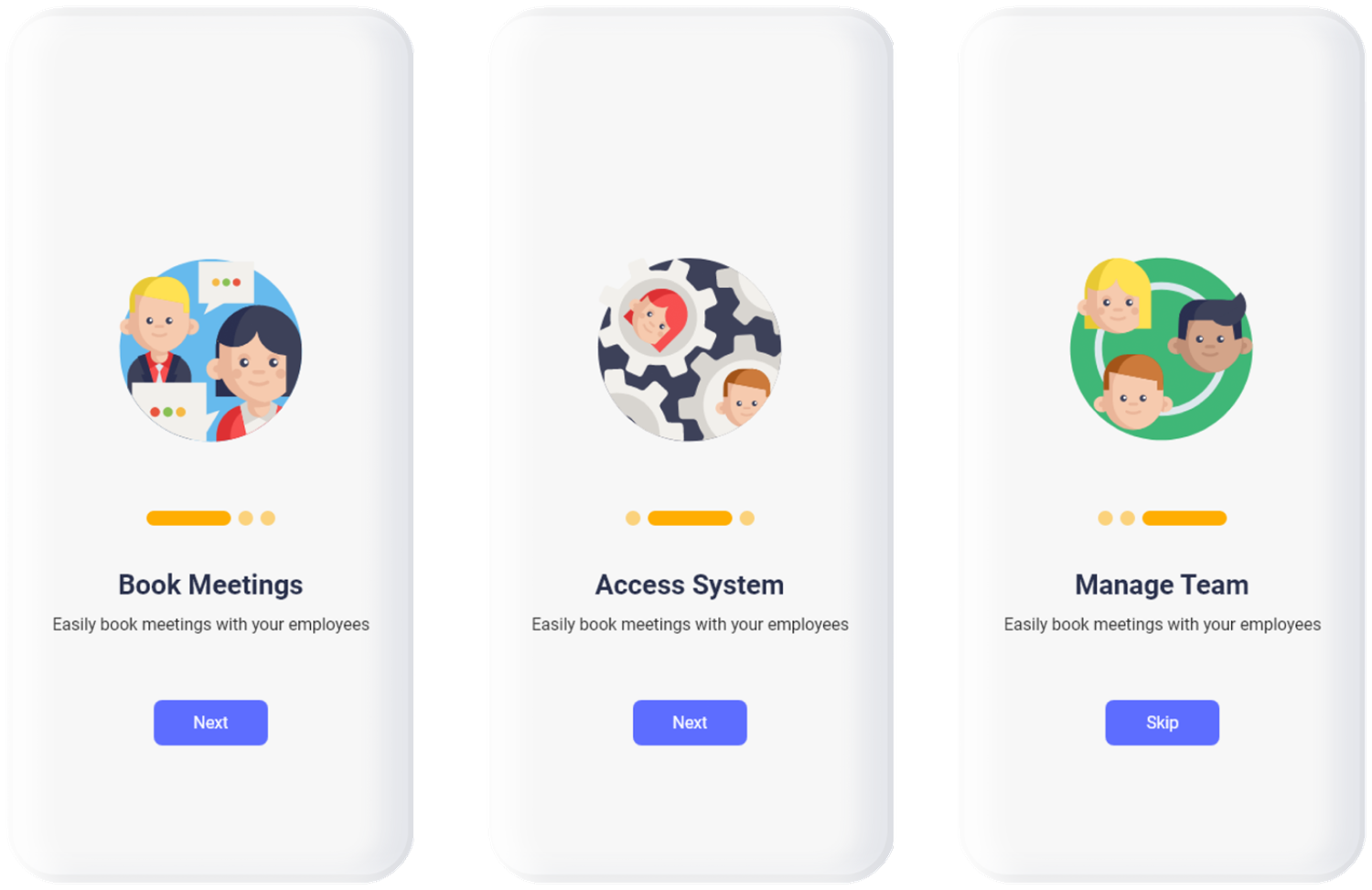
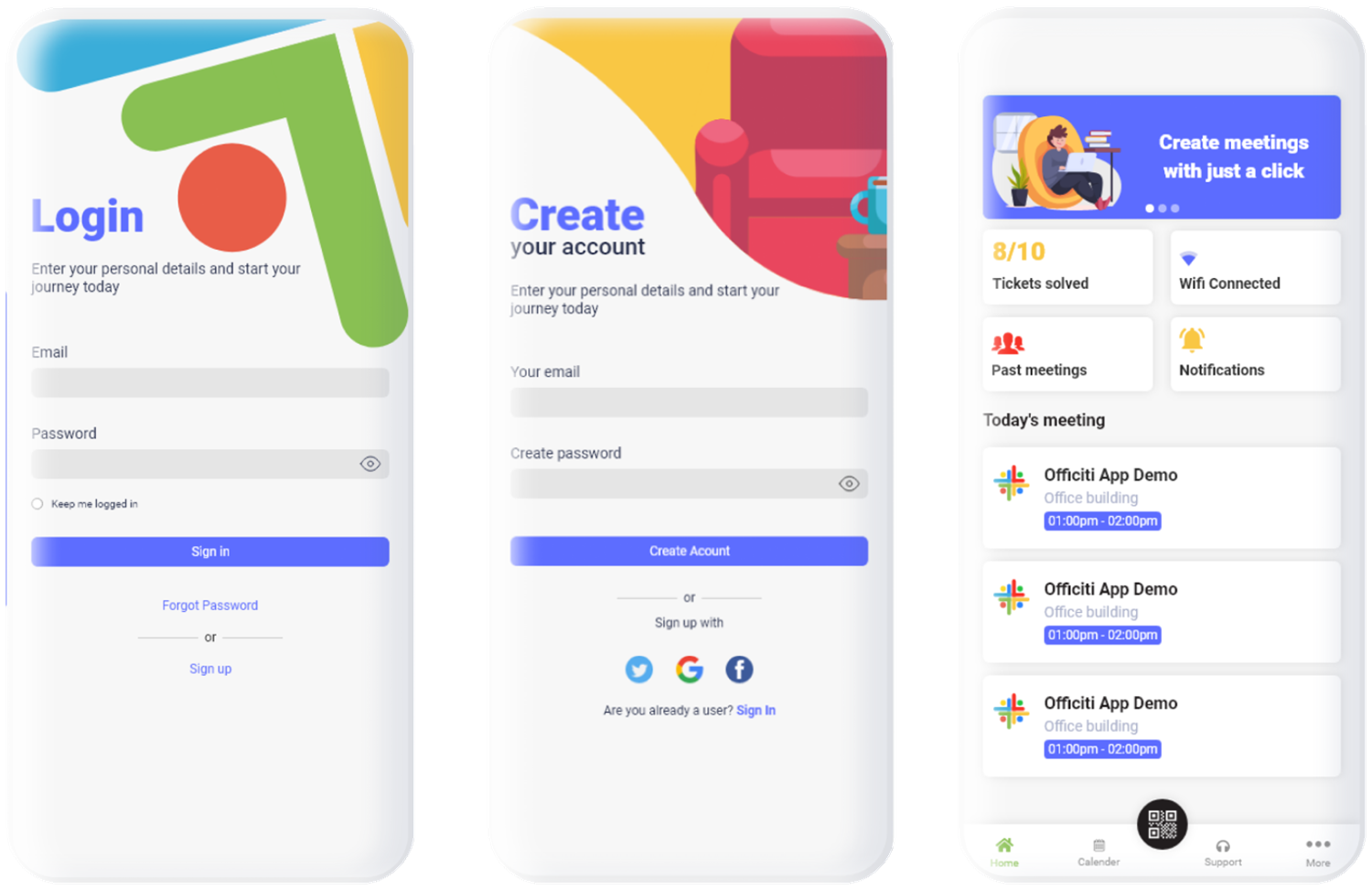
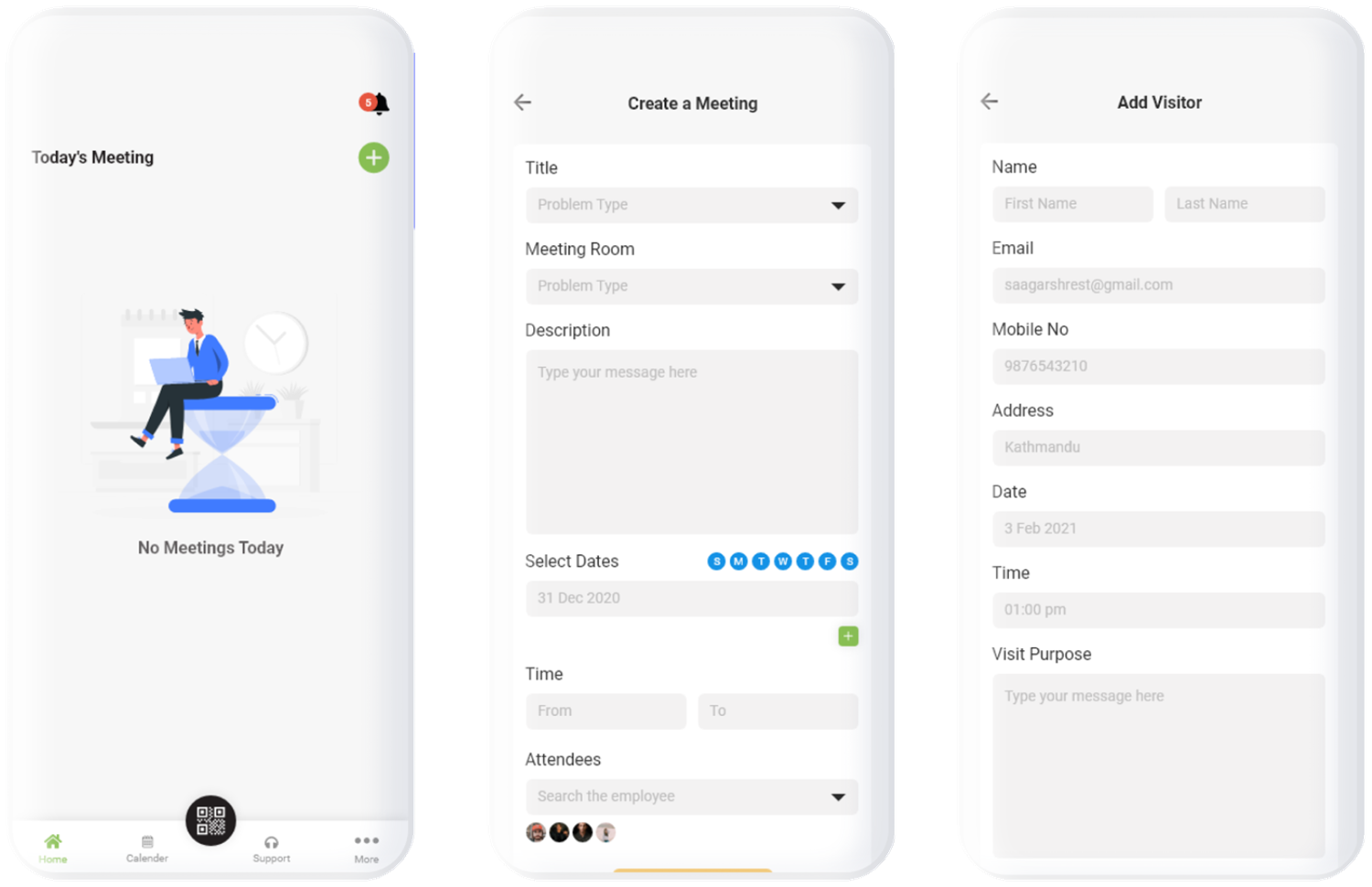
One system for every screen.
To keep 25+ screens consistent across Android, iOS and web, I documented a full design system: tokens, components, patterns and accessibility rules. It starts from the original style guide, then fixes what testing against WCAG showed.
#5D6DFF
#E8553E
#FFAE02
#2D2D2D
#BDBDBD
#89C053
| Accessibility fix | Before | After |
|---|---|---|
| White text on the primary button | 4.12 : 1 | 5.86 : 1 with #4351E8 |
| Error text on white | 3.62 : 1 | 6.17 : 1 with #B5301E |
| Secondary and placeholder text | 1.88 : 1 | 5.33 : 1 with #6B6B6B |
| Labels on amber and green | 1.86 and 2.16 : 1 (white) | 7.42 and 6.38 : 1 (ink) |
Foundations
Roboto type scale, 4-point spacing, radius and elevation, a 23-icon outline set, layout grid and motion tokens.
Components
Buttons, form fields, selection controls, meeting and ticket cards, tab bar with scan button, alerts, toasts, empty states, skeletons and dialogs, all interactive.
Patterns
A three-step booking flow, a ticket status system, QR visitor access, and rules for empty, loading, error and success states.
Decisions, and the reasons.
| Principle | Where it shows up in Officiti |
|---|---|
| Hick's Law | The tab bar offers four destinations plus scan. Onboarding is three short screens instead of one long explanation. |
| Fitts's Law | The scan button is large and centered in the thumb zone. Primary actions are full-width, and targets are at least 48 px. |
| Jakob's Law | Bottom tab bar, top-left back arrow, labels above form fields and a standard calendar picker. |
| Von Restorff Effect | The dark scan button and single filled primary button stand out from every other element. |
| Visibility of status | Dashboard stats, ticket tiles and notifications keep members informed about bookings and requests. |
| Recognition over recall | Visible labels, a searchable attendee list with avatars, and Pending and Closed tabs instead of hidden filters. |
| Common region and proximity | Cards group each meeting's date, title, room and attendees, so related facts read as one unit. |
What I'd fix in the first version.
Reviewing the original screens against usability heuristics and WCAG revealed real problems. Listing them is part of the process, and each one is resolved in the design system.
| Finding | Principle | Severity | Fix in the design system |
|---|---|---|---|
| Secondary text in ticket details is light gray, at about 1.9 : 1 contrast. | WCAG 1.4.3 Contrast | Major | Secondary text is now #5C5C5C or #6B6B6B (6.7 : 1 and 5.3 : 1). |
| Status is shown only by header color (green, blue, red) and by colored notification edges. | WCAG 1.4.1 Use of color | Major | Every status pairs color with an icon and a word: Resolved, Pending, Not resolved. |
| Create a Meeting puts seven inputs on one long screen. | Hick's and Miller's laws | Moderate | Split into three steps (What, When, Who) with a progress bar. |
| Placeholder text is reused across screens, for example "Problem Type" on the meeting title and room selects. | Match with the real world | Moderate | Field-specific labels and placeholders such as "e.g. Sprint planning". |
| The ticket detail screen shows "Status" twice with different values. | Consistency and standards | Moderate | One status per record, and a separate "Decision" control for Approve and Reject. |
| White label on the primary blue is 4.12 : 1, and red buttons are 3.62 : 1. | WCAG 1.4.3 Contrast | Moderate | Action blue #4351E8 (5.86 : 1) and danger #C83E2A (5.03 : 1). |
| Tab bar labels are 10 px, and some fields use gray-on-gray text. | Legibility | Minor | Minimum 11 px, and inputs get a visible 1.5 px border. |
| Tickets are six steps deep from the dashboard. | Efficiency of use | Minor | Show open tickets directly on the Support tab and shorten the path to detail. |
| Placeholder copy such as "Some other information here" is still visible in several screens. | Content quality | Minor | Real microcopy that says what happened and what to do next. |
What testing told me.
Usability testing with five target users checked the main flows: signing in, booking a meeting, adding a visitor and opening a ticket. Feedback was folded back into the designs before the final screens.
“I used to spend hours scrolling Facebook groups or asking friends for space recommendations. This feels like Airbnb for workspaces.”
Remote developer, Kathmandu“I can finally sync bookings with my small team. We now meet once a week without the chaos.”
Startup founder, small team leadWhat I'd carry into the next project.
Test contrast on day one
Brand colors are not automatically accessible. Checking ratios early is cheaper than fixing them across 25 screens.
Split long forms
A form that fits on one screen is not always easier. Steps and progress reduce effort.
Never rely on color alone
Icons and words make status readable for everyone, in any lighting.
Shorten frequent paths
The most common tasks should be the fewest taps away.
Payment gateway
Secure in-app payments and invoices.
Smart matching
Recommend spaces based on work style and preferences.
Ratings and reviews
Build trust through verified experiences.
Admin dashboard
Let space owners manage bookings, utilization and feedback.