Your keys. Your crypto.
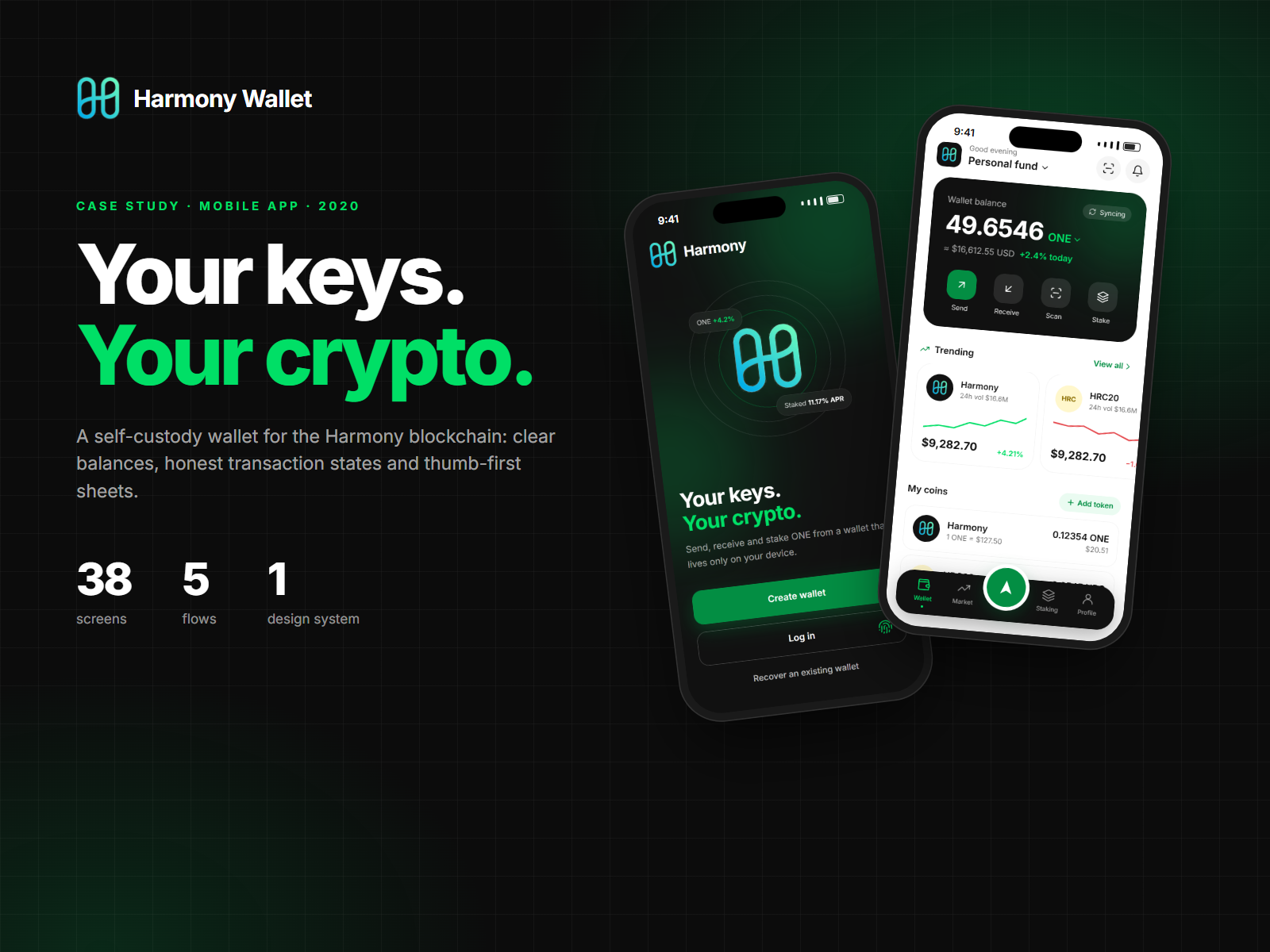
Harmony Wallet is a self-custody mobile wallet for the Harmony (ONE) blockchain. You can create or recover a wallet, send and receive tokens across shards, pay with a QR code and stake ONE with validators. I designed the whole app in 2020: 38 screens across five flows, all built from one design system.
Self-custody puts all the risk on the user.
There's no bank to call. If someone loses their recovery phrase or sends to the wrong address, the money is gone. The design had to make people feel in control at every step without hiding how the blockchain works.
Keys are scary
New users have to write down 12 words before they can do anything. If that step feels like a chore, people skip it, and a skipped backup is a lost wallet.
Numbers have to be exact
Balances run to four or more decimals, addresses are 42 characters long, and every transfer has a network fee. All of it has to stay readable on a phone.
Harmony has shards
Tokens live on numbered shards, so a transfer needs a from-shard and a to-shard. That idea has to fit into a normal send form.
Nothing can be undone
A transfer is final once it's signed, so the app can never say "sent" until it really has been sent.
Staking is dense
Validators come with returns, fees, stake history and delegator lists, which is a lot of data for a 390px screen.
Four rules behind every screen.
One clear action
Each screen has a single green primary button. Every other action is outline, black or grey.
Money is the hero
Balances sit on black cards in the largest, tightest type in the app, with the fiat value and daily change right underneath.
Thumb-first
Confirmations, fees and pickers open as bottom sheets. Key buttons are 56px tall and full width, inside the bottom half of the screen.
Say what happened
Every money movement has its own review, pending and success states, each with its own icon and wording.
The whole app on one page.
I mapped the app before drawing any screens. Four tabs (Wallet, Market, Staking, Profile) sit around a raised Send button. Each flow is its own stack, and every decision opens as a bottom sheet on top of the screen it belongs to.
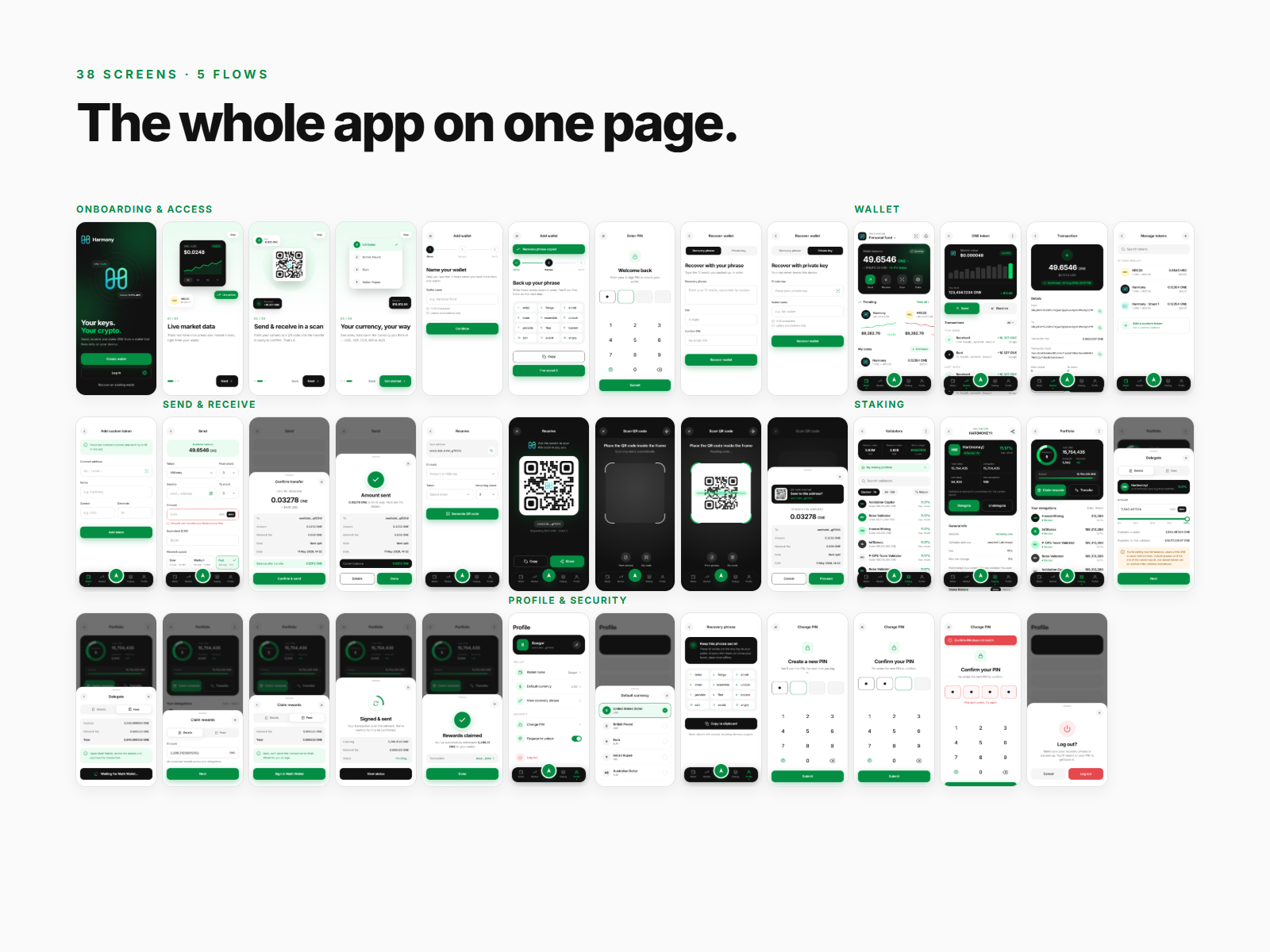
| Flow | Screens | What it covers |
|---|---|---|
| 01 · Onboarding and access | 9 | Welcome, three onboarding slides, create a wallet, recovery phrase backup, recover by phrase or private key, PIN unlock |
| 02 · Wallet | 5 | Home, token detail with history, manage tokens, add a custom token |
| 03 · Send and receive | 8 | Send form, review sheet, sent state, receipt, receive request, QR code, scanner, scan confirm |
| 04 · Staking | 9 | Validators, validator profile, portfolio, delegate, fees, claim rewards, signing, success |
| 05 · Profile and security | 7 | Settings, currency, recovery phrase, change PIN, PIN errors, log out |
Green for action. Black for money.
The palette is small on purpose. One green means "do this" or "you gained". Black holds money and navigation. Neutrals keep forms quiet. Red only ever means a loss, an error or a log out. The Harmony logo keeps its own blue-to-teal gradient, so the product brand still comes through.
Every colour is a named token in a single theme, and no screen uses a raw hex value.
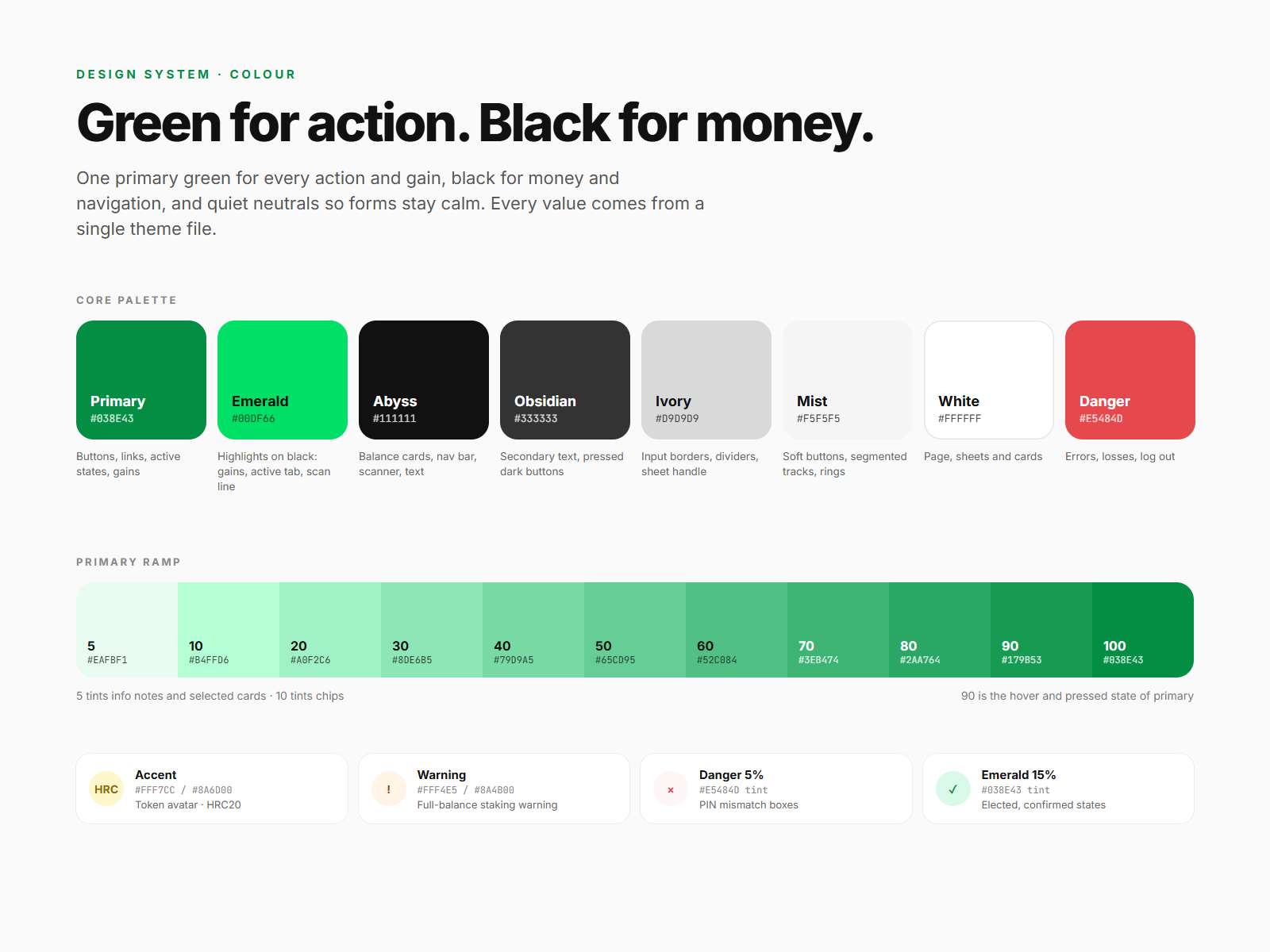
| Token | Hex | Used for |
|---|---|---|
| Primary | #038E43 | Primary buttons, links, active states, positive amounts |
| Emerald | #00DF66 | Highlights on black: gains, active tab, scan line |
| Abyss | #111111 | Balance cards, nav bar, scanner, welcome, headings |
| Obsidian | #333333 | Body text, pressed dark buttons |
| Ivory | #D9D9D9 | Input borders, dividers, sheet handle |
| Mist | #F5F5F5 | Soft buttons, segmented tracks, rows |
| White | #FFFFFF | Pages, sheets, cards |
| Danger | #E5484D | Errors, losses, log out |
An 11-step primary ramp
The green runs from 5 (#EAFBF1) to 100 (#038E43) in ten even steps. Only four steps do real work:
- 100 is the base: buttons, links and the active tab.
- 90 (#179B53) is the pressed state of a primary button.
- 10 (#B4FFD6) is the tint behind info notes and selected options.
- 5 (#EAFBF1) is the background of chips, success rows and selected cards.
Accent pairs
Each accent is a background and text pair: HRC20 token avatars #FFF7CC / #8A6D00, warnings #FFF4E5 / #8A4B00, errors at 5% danger, and confirmed states at 15% emerald.
Contrast, checked against WCAG AA
| Pair | Ratio | Result |
|---|---|---|
| Obsidian #333333 on white (body text) | 12.63:1 | Passes AAA |
| Emerald #00DF66 on abyss #111111 (gains on black cards) | 10.56:1 | Passes AAA |
| Grey #737373 on white (captions) | 4.74:1 | Passes AA |
| White on primary #038E43 (15px button label) | 4.24:1 | Passes AA for large text and UI parts, short of 4.5:1 for small text |
| White on danger #E5484D (15px button label) | 3.91:1 | Passes 3:1 for UI parts, short of 4.5:1 for small text |
| Primary #038E43 on green 5 #EAFBF1 (chip text) | 3.95:1 | Short of 4.5:1 for small text |
One family, ten sizes.
Inter in four weights: 400, 500, 600 and 700. Its figures are clear at small sizes, which matters when a balance has six decimals. Money gets the biggest, tightest type. Everything else stays small and calm, so the numbers stand out.
Semibold is the workhorse, used 408 times across the screens for labels, buttons and row titles. Bold (109 uses) is kept for money and headings.
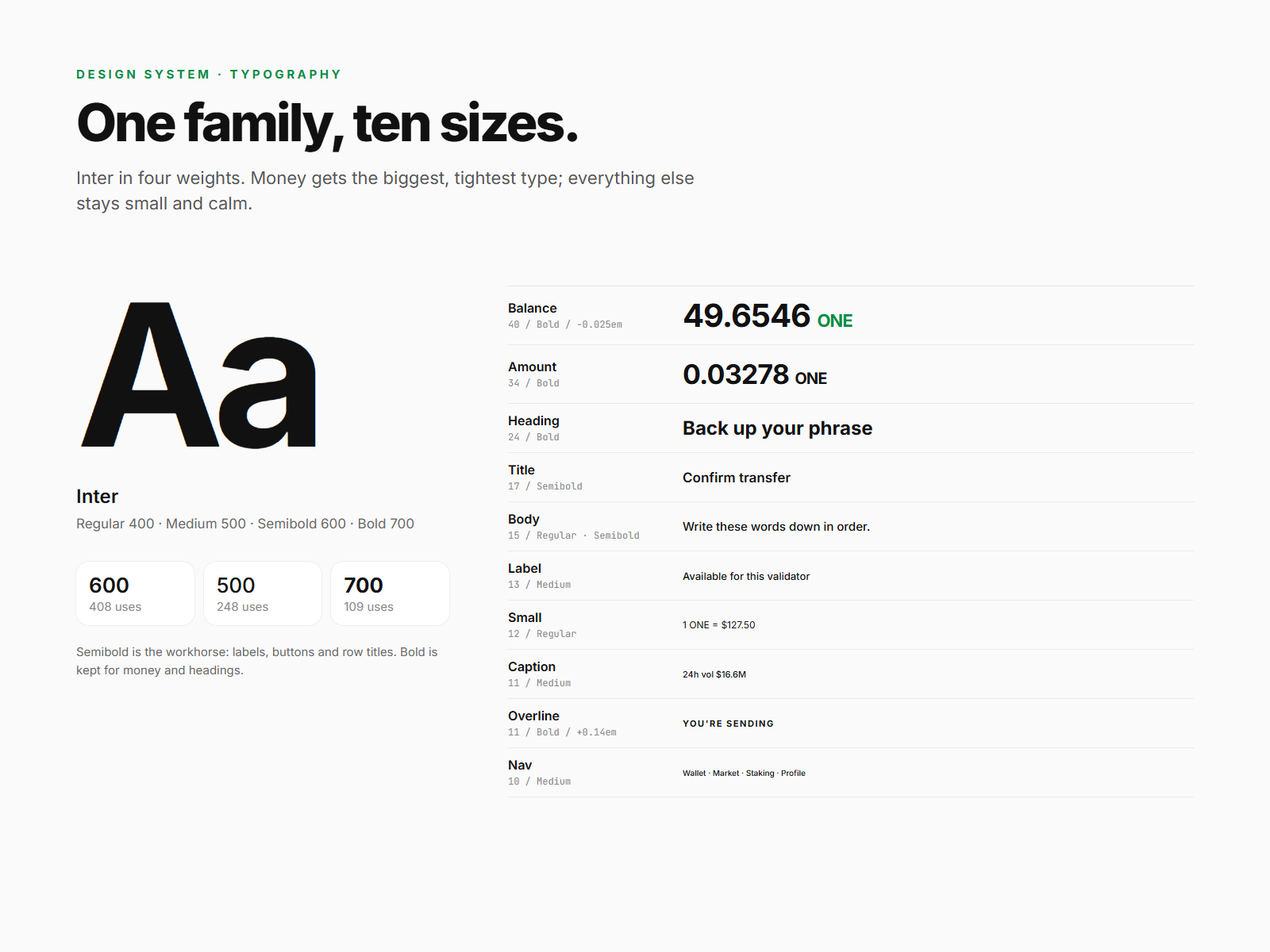
| Style | Size / weight | Tracking | Example |
|---|---|---|---|
| Balance | 40px · Bold | -0.025em | 49.6546 ONE on the home card |
| Amount | 34px · Bold | tight | 0.03278 ONE in a review sheet |
| Heading | 24px · Bold | tight | Back up your phrase |
| Title | 17px · Semibold | — | Confirm transfer |
| Body | 15px · Regular to Semibold | — | Buttons, inputs, descriptions (219 uses) |
| Label | 13px · Medium | — | Field labels, row meta (131 uses) |
| Small | 12px · Regular | — | Fiat values, helper text (226 uses) |
| Caption | 11px · Medium | — | Timestamps, chart labels |
| Overline | 11px · Semibold, uppercase | 0.14em | YOU'RE SENDING |
| Nav | 10px · Medium | — | Wallet · Market · Staking · Profile |
Built once, used on all 38 screens.
Five button styles, one input with three states, and a small set of selection controls cover every form in the app. Each component has a default and a pressed state, and inputs add focus and error.
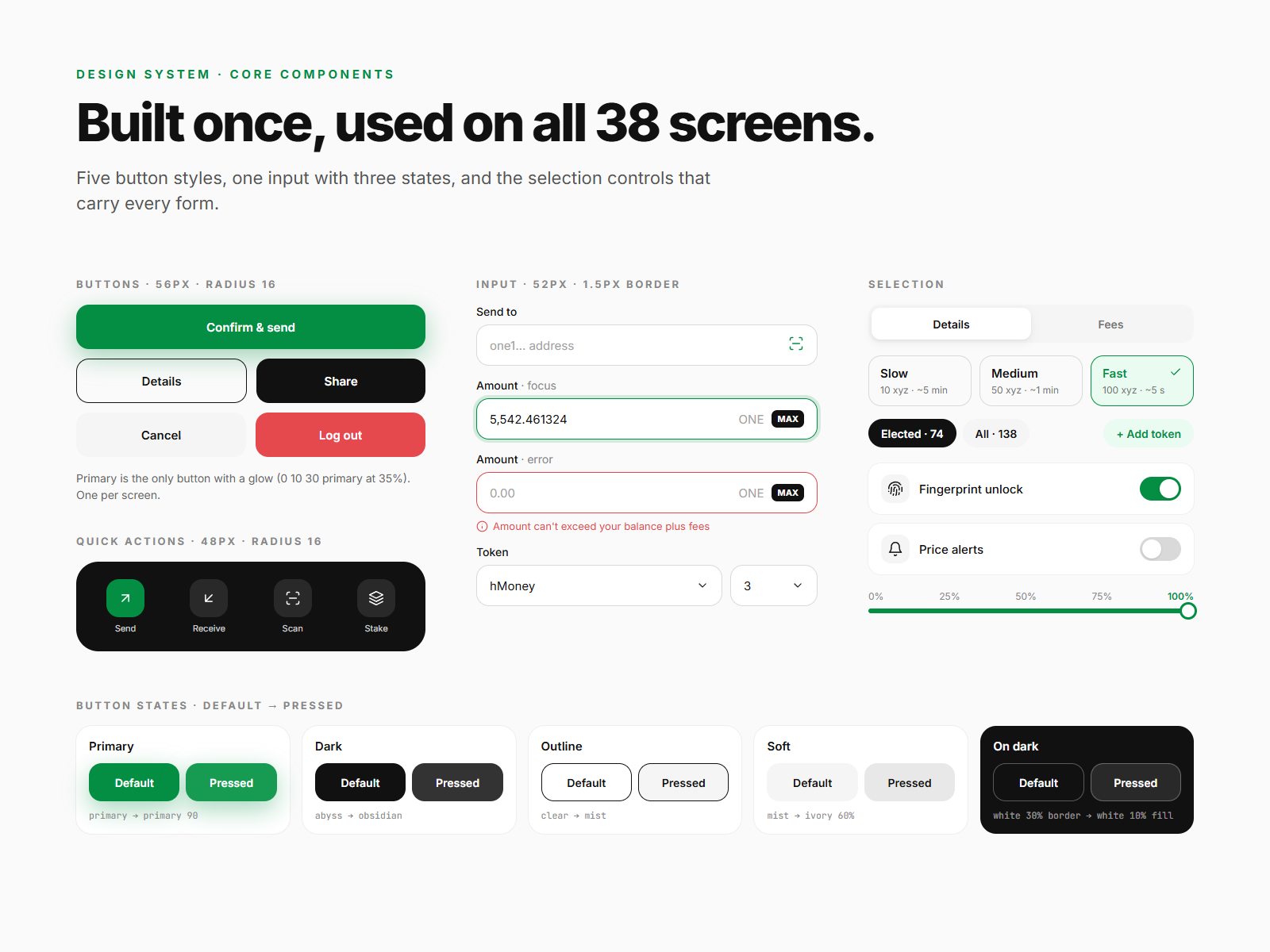
| Button | Default | Pressed | Used for |
|---|---|---|---|
| Primary | Primary + green glow | Primary 90 | The one main action |
| Dark | Abyss | Obsidian | Strong secondary: Share, Next |
| Outline | 1.5px abyss border | Mist fill | Alternatives: Details, Log in |
| Soft | Mist | Ivory 60% | Cancel, Copy |
| Danger | Danger | — | Log out only |
| On dark | White 30% border | White 10% fill | Secondary on black screens |
Specs
- Buttons are 56px tall with a 16px radius and a 15px semibold label. The green glow (0 10px 30px at 35%) is only used on the primary button, so it's always the first thing you see.
- Quick actions are 48px tiles with a 16px radius, inside the black balance card.
- Inputs are 52px with a 16px radius and a 1.5px ivory border. On focus the border turns primary with a 4px ring at 15%. On error it turns danger, and a message appears below the field.
- Selection covers segmented tabs on a mist track, three speed cards (Slow, Medium, Fast) with fee and time, filter chips, a toggle, a select and a stake slider.
- Labels sit above fields, never inside them, so they stay visible while typing.
Sheets, rows and states.
The bigger pieces are put together from those components. They repeat across the app, so a user who learns one flow already knows how the next one works.
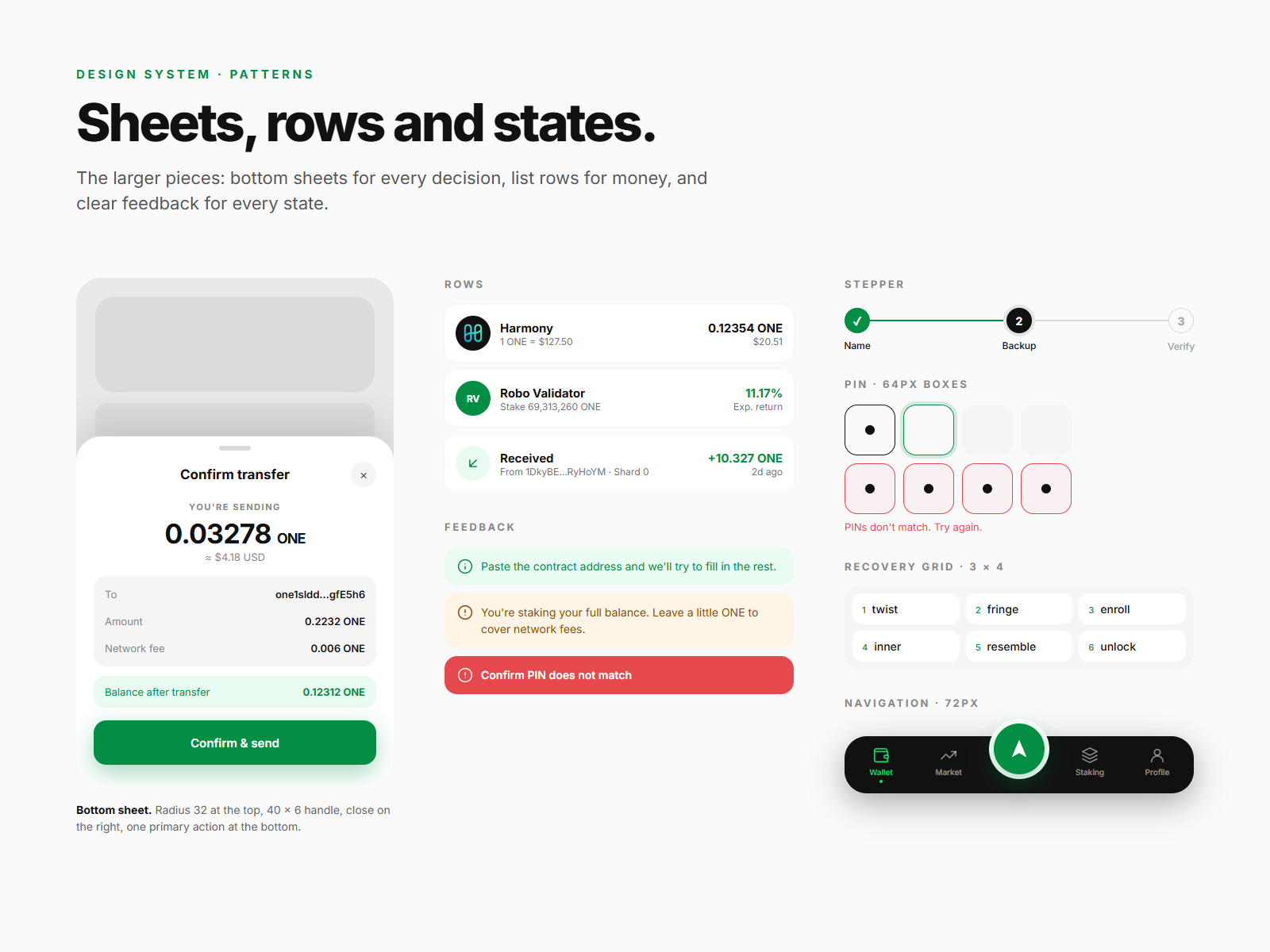
Bottom sheet
A 32px top radius, a 40 × 6px ivory handle, a close button on the right and one primary action at the bottom. It's used for every review, fee breakdown, picker and confirmation.
Rows
Token, validator and transaction rows share one layout: a 40px avatar, a name with meta below it, and the value right-aligned. Gains are green, losses are red, and pending items are grey.
Feedback notes
Three tinted notes, each with an icon: info on green 5, warning on amber and error on danger 5. Every note says what happened and what to do next.
Stepper, PIN and recovery grid
A 3-step stepper (Name, Backup, Verify). Four 64px PIN boxes with an on-screen keypad. A numbered 3 × 4 recovery grid, so the order of the words is never in doubt.
Navigation bar
A floating black bar, 72px tall with a 28px radius, sitting 20px above the home indicator. Send is a raised 64px green button with a 6px white ring, so the main action of the app is always one tap away.
Radius, space, depth and icons.
Underneath everything is a 390 × 844 frame with 20px side margins, a 4px spacing base, six radii, four shadows and one icon stroke.
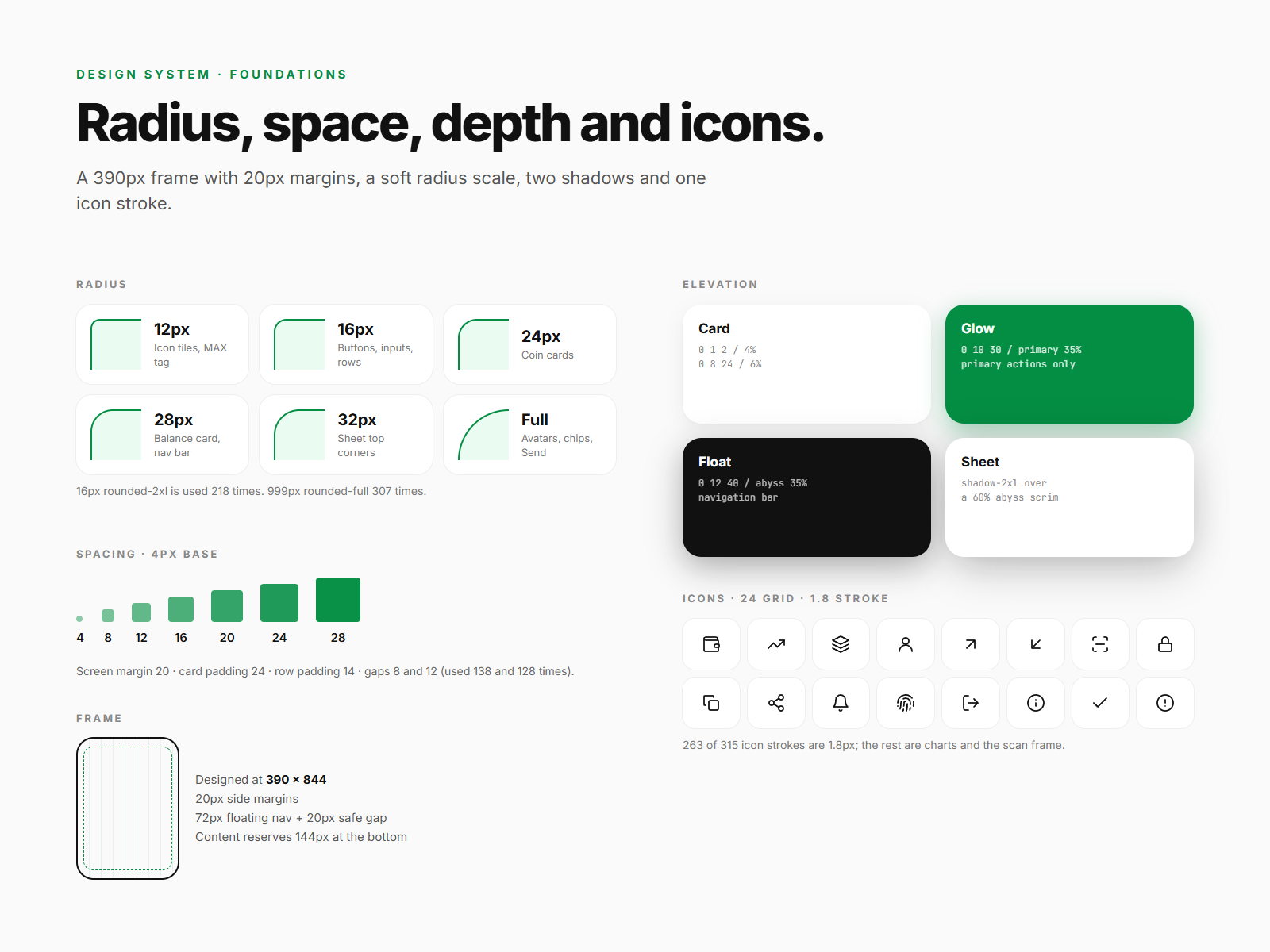
| Radius | Used for |
|---|---|
| 12px | Small tiles, MAX tag |
| 16px | Buttons, inputs, list rows (218 uses) |
| 24px | Cards |
| 28px | Balance card, nav bar |
| 32px | Top of bottom sheets |
| Full | Avatars, chips, icon buttons (307 uses) |
| Elevation | Value |
|---|---|
| Card | 0 1px 2px at 4% + 0 8px 24px at 6% |
| Glow | 0 10px 30px primary at 35%, primary button only |
| Float | 0 12px 40px abyss at 35%, nav bar only |
| Sheet | Large soft shadow over a 60% abyss scrim |
- Spacing uses a 4px base: 4, 8, 12, 16, 20, 24, 28. Screen margins are 20px, card padding 24px and row padding 14px. Gaps of 8px and 12px do most of the work (138 and 128 uses).
- Icons are line icons on a 24px grid at a 1.8px stroke, with rounded caps and joins. 263 of the 315 strokes use 1.8px; the rest are charts and the scanner frame.
- Safe areas. Content reserves 144px at the bottom so nothing hides behind the floating nav bar.
Five flows, 38 screens.
Each flow below shows four key screens and the decisions behind them.
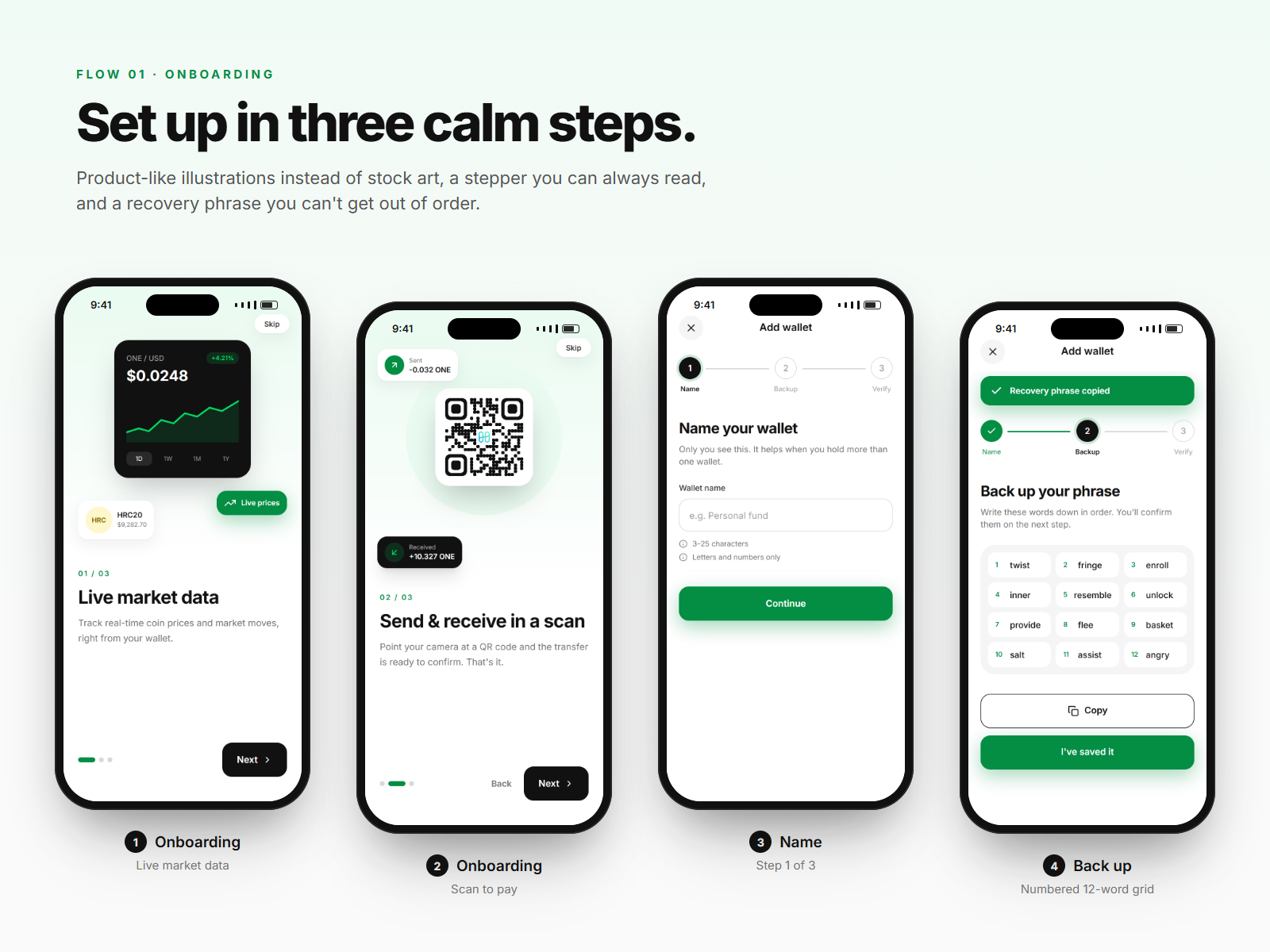
Set up in three calm steps
- The onboarding slides use product-like illustrations (a price card, a QR transfer) instead of stock art, with a progress bar and Skip on every slide.
- Creating a wallet is a 3-step stepper: Name, Backup, Verify. You can always see where you are and how much is left.
- The recovery phrase is a numbered 3 × 4 grid with a security warning, plus Copy and "I've saved it" buttons.
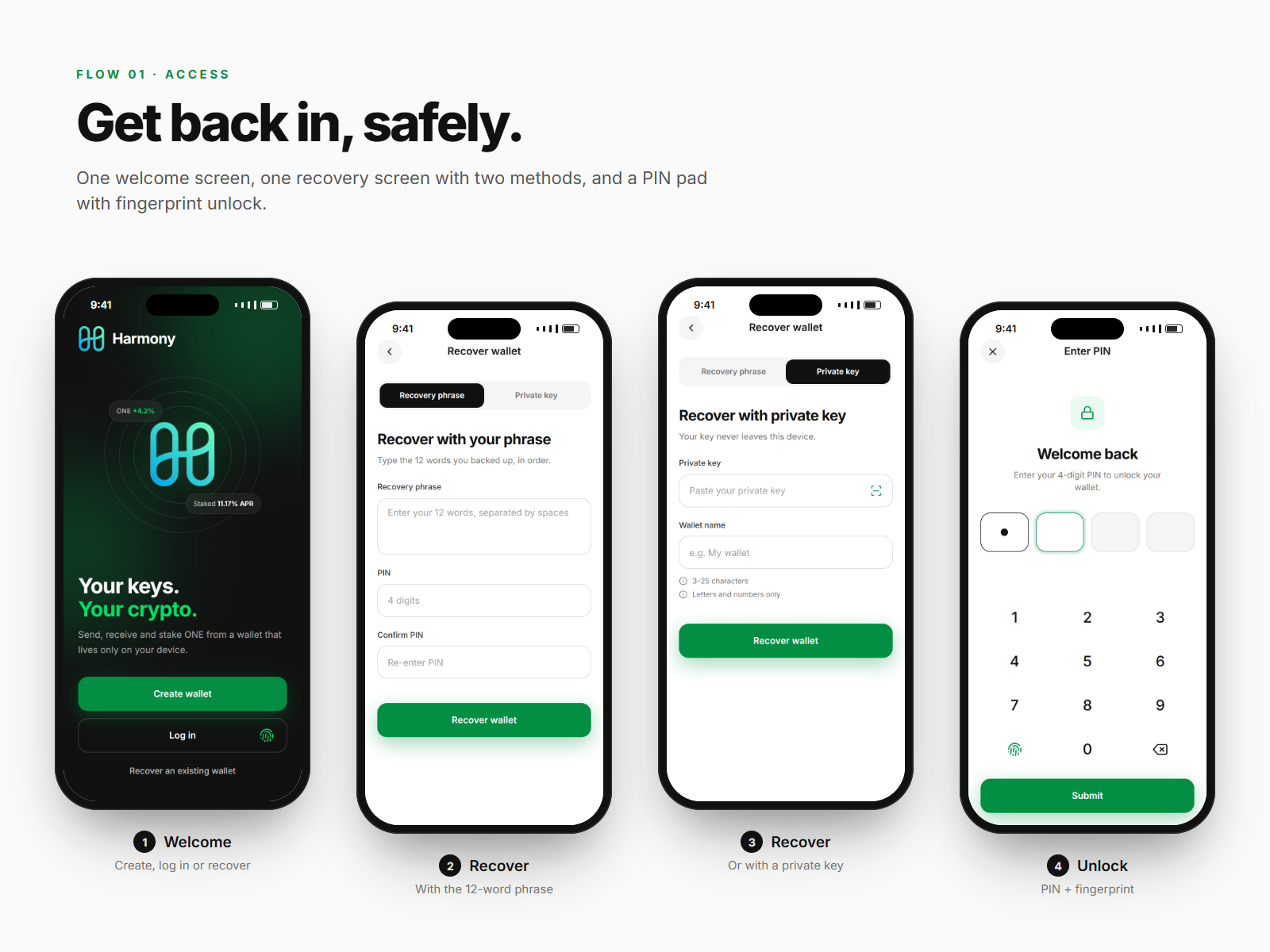
Get back in, safely
- The welcome screen is black with a soft green glow, the logo in the centre and a clear promise: "Your keys. Your crypto."
- Recovery is one screen with two tabs, recovery phrase and private key, instead of two near-identical pages.
- Unlocking uses four PIN boxes, an on-screen keypad and fingerprint unlock.
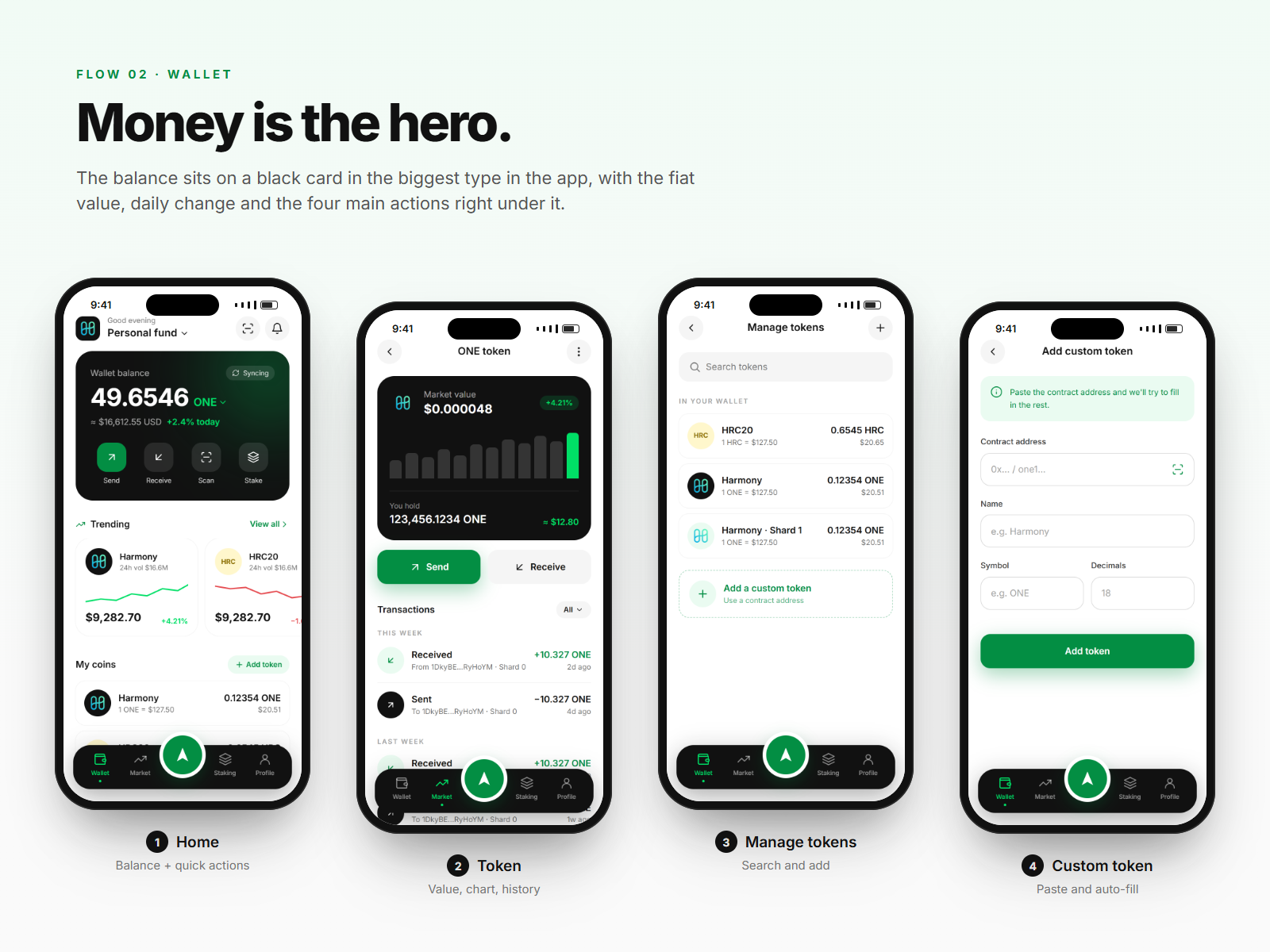
Money is the hero
- The balance sits on a black card at 40px, with the fiat value, the daily change and a sync status underneath.
- Send, Receive, Scan and Stake sit inside the card, right under the thumb.
- Each token opens a detail page with a chart and its own history. Custom tokens are added from a contract address, and the app fills in the name and symbol by itself.
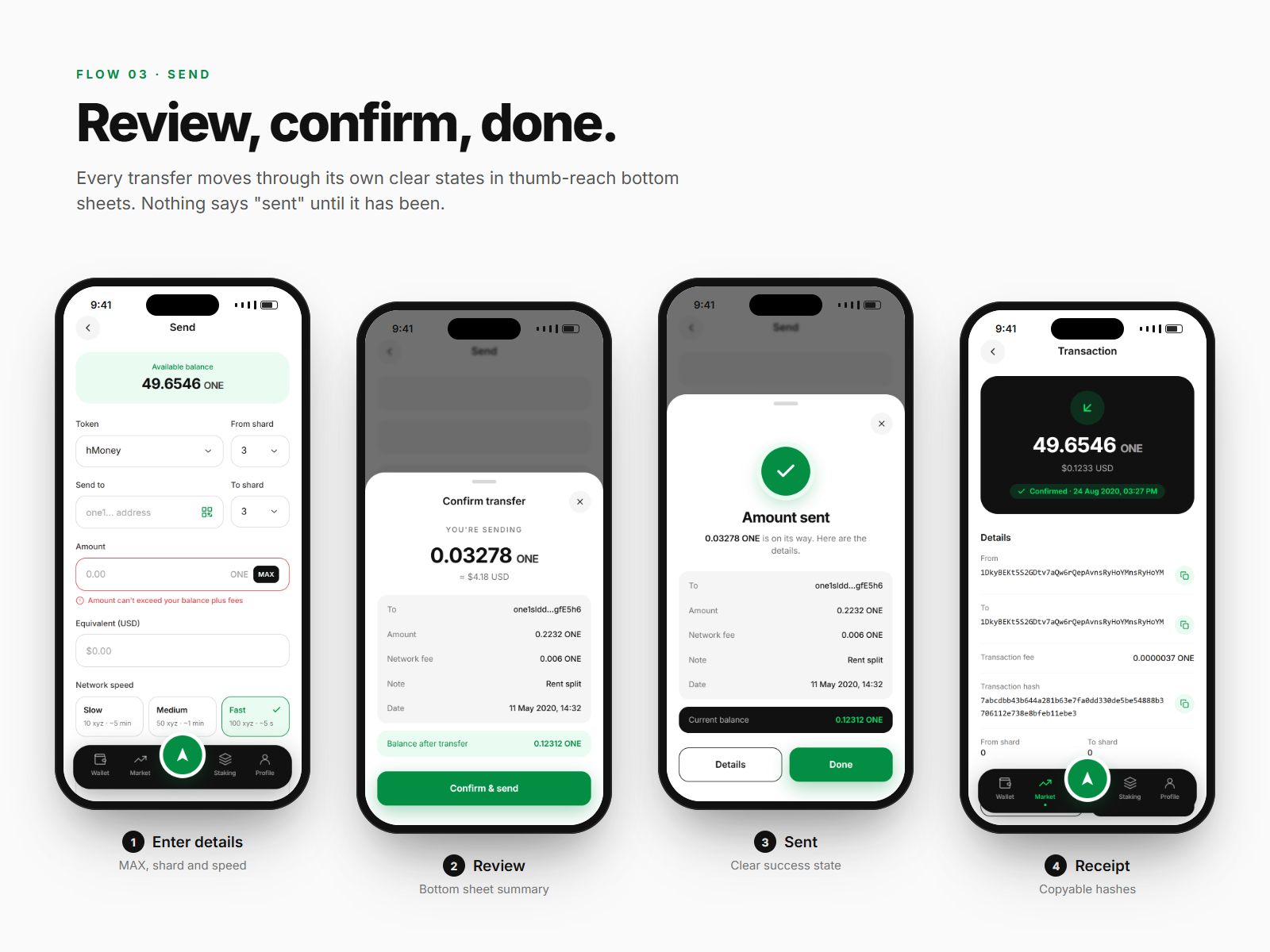
Review, confirm, done
- Send shows the available balance at the top, puts token and shard side by side, and adds a MAX button and an inline balance error.
- Network speed is three cards (Slow, Medium, Fast), each showing its fee and time.
- A bottom sheet sums up the amount, fee, total and balance after the transfer before anything is signed.
- Review
- Confirm & send
- Amount sent · receipt
The rule. Nothing says "sent" until it has been sent. The receipt has copyable hashes and a link to the explorer.
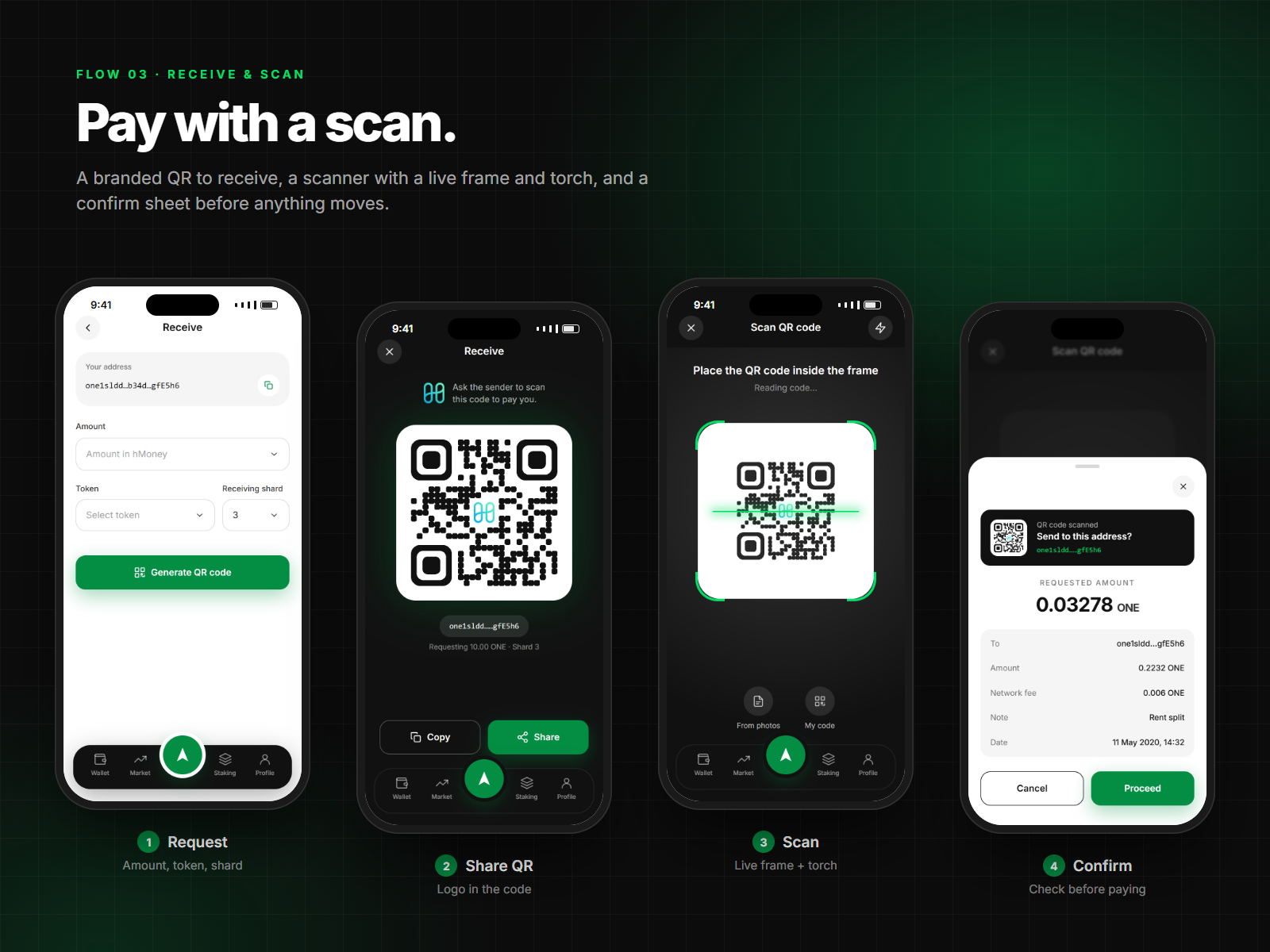
Pay with a scan
- Receive builds a request with an amount, token and shard, then shows a QR code on a black screen with the logo in the centre.
- The scanner has green corner brackets, a moving scan line, a torch toggle and an option to scan from photos.
- A scanned code opens a confirm sheet, so nothing moves until the user has checked it.
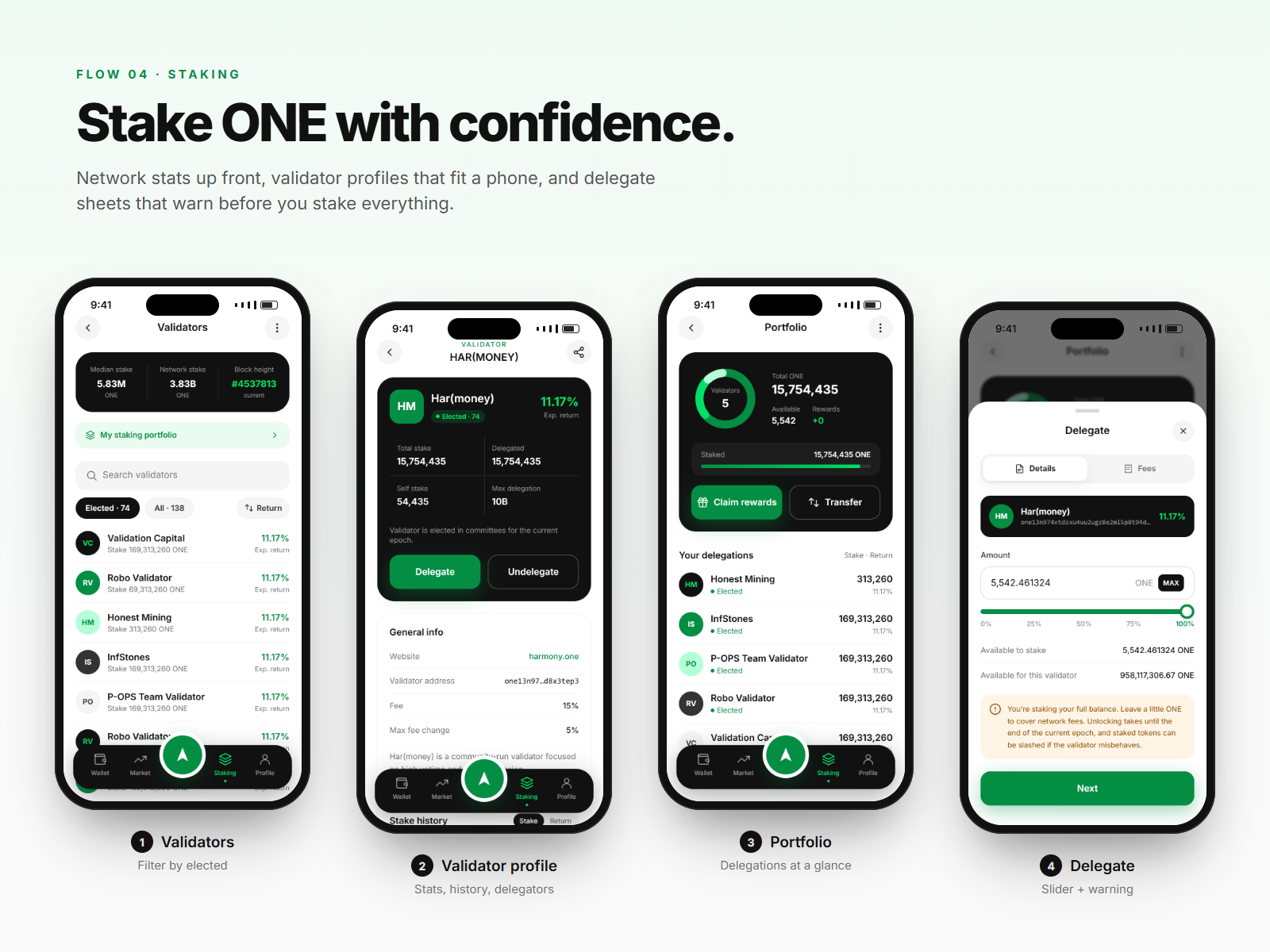
Stake ONE with confidence
- Validators opens with three network stats on a black card, then search, Elected and All filters, and a list sorted by expected return.
- The validator profile stacks into cards that fit a phone: a summary with Delegate and Undelegate, general info and stake history.
- Portfolio shows delegations at a glance. The delegate sheet has a slider and warns you before you stake your full balance.
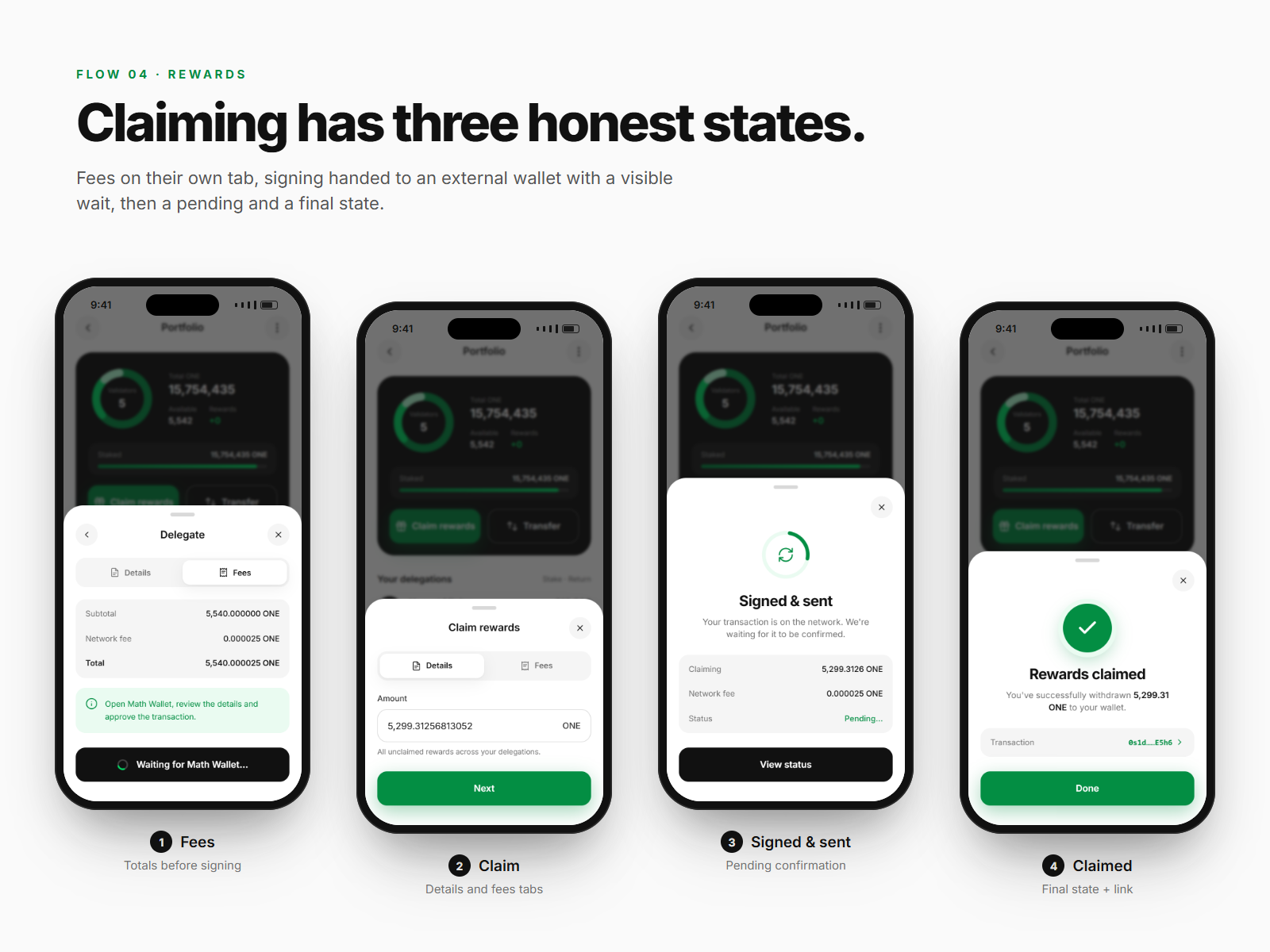
Claiming has three honest states
- Fees have their own tab, so the total is clear before signing.
- Signing happens in an external wallet, and the app says so plainly while it waits.
- After signing, the claim shows a pending state and then a final state with a link to the transaction.
- Fees
- Signed & sent · pending
- Rewards claimed
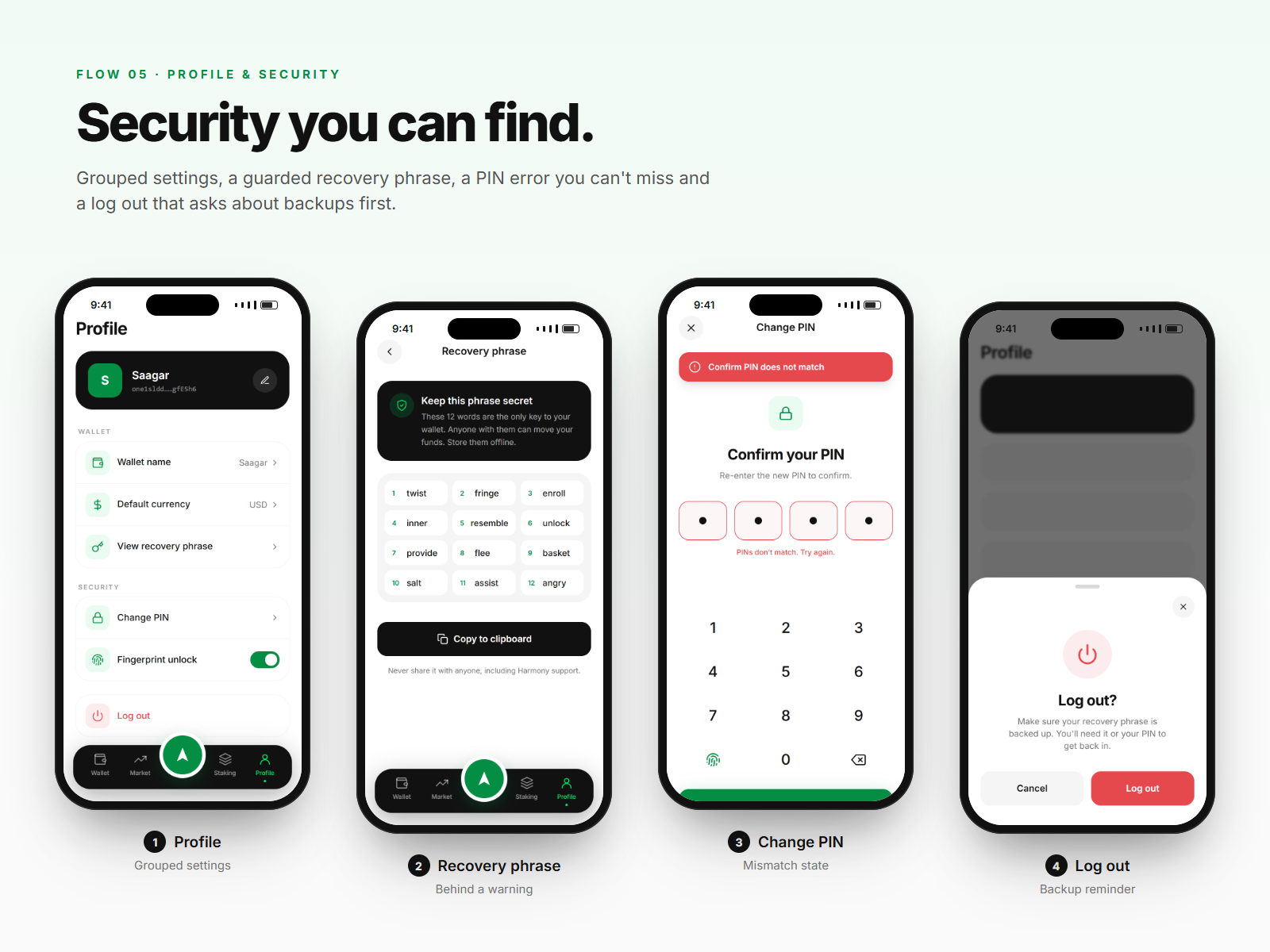
Security you can find
- Settings are grouped lists (Wallet, Security) with icon tiles, current values and a fingerprint toggle.
- The recovery phrase is shown behind a warning, with the same numbered grid as onboarding.
- A PIN mismatch turns every box red and shows a plain message. Log out opens a red-accented sheet that reminds you to back up your phrase first.
A design system that lives in code.
The app targets iOS and Android from a single React Native codebase, so the system was organised the way code would use it.
Theme tokens
Colours, type sizes, spacing, radii and shadows sit in one theme. Every screen reads from it, so a palette change, such as the contrast fix above, happens in one place.
Component library
Button, Input, Select, BottomSheet, PinPad, Stepper, TokenRow, ValidatorRow, StatCard and TabBar, each with variants, used across all 38 screens.
Navigation
A bottom tab navigator holds Wallet, Market, Staking and Profile, with Send as a raised centre action. Each flow is its own stack, and confirmations open as modal bottom sheets.
Native features
Fingerprint unlock uses the device's biometrics, and the QR scanner uses the camera with a torch toggle. Keys and the PIN stay in the device's secure storage, never on a server.
Where it landed.
A complete wallet UI, from the first launch to staking rewards, built from one shared theme and component library.
In a wallet, colour is a trust signal.
Less green, clearer screens
Keeping green for action and gain made every screen easier to scan.
Honest states beat polish
Separate review, pending and success screens did more for trust than any visual detail.
Check contrast early
The brand green looked strong but sat just under AA for small white text. A one-step darker shade fixes it, and it's cheaper to catch at the token stage.
Usability testing
Test the send and delegate flows with five ONE holders.
Contrast tokens
Ship the darker primary and danger shades across the theme.
Dark mode
Build it from the same tokens.
Missing states
Design empty, offline and failed-transaction states.